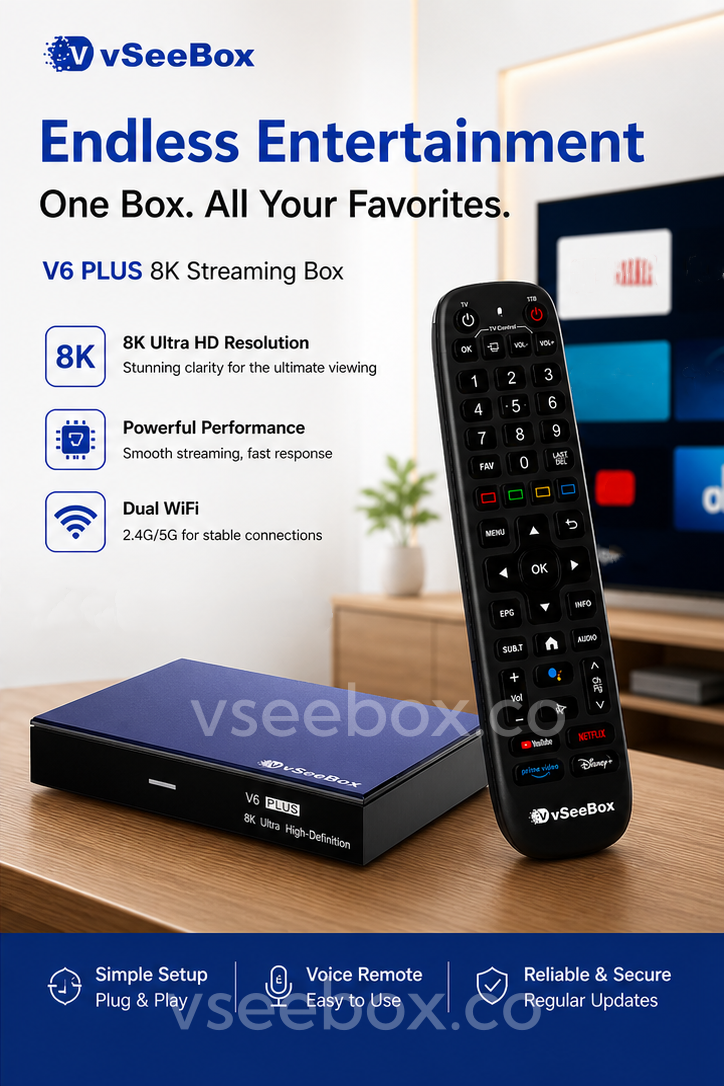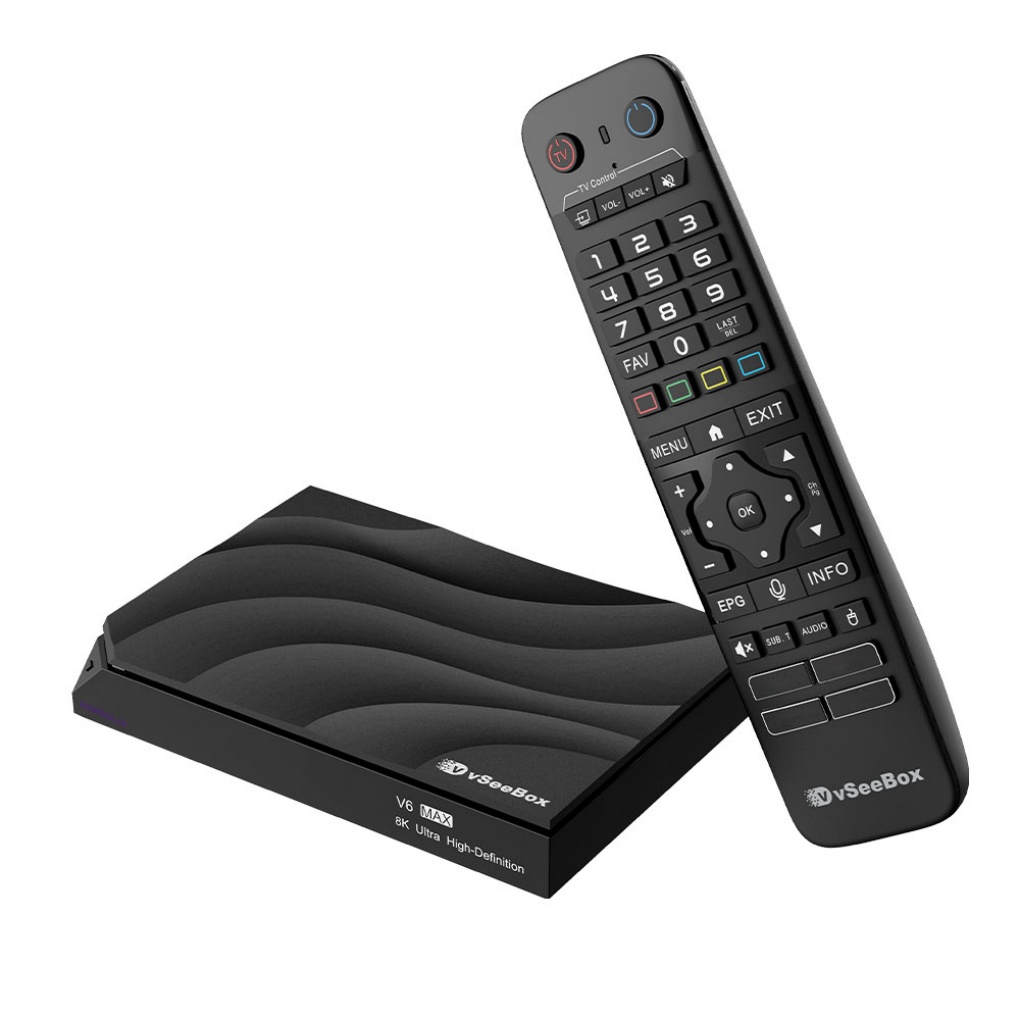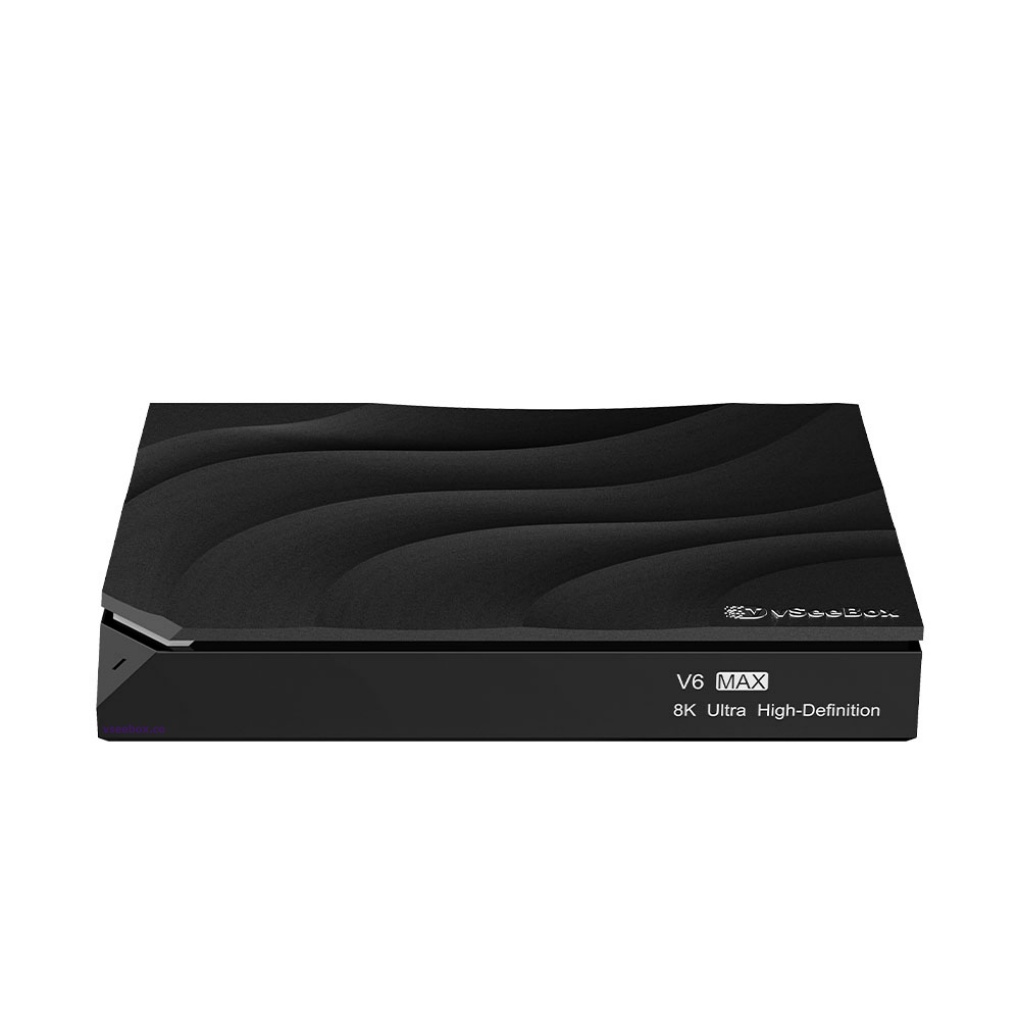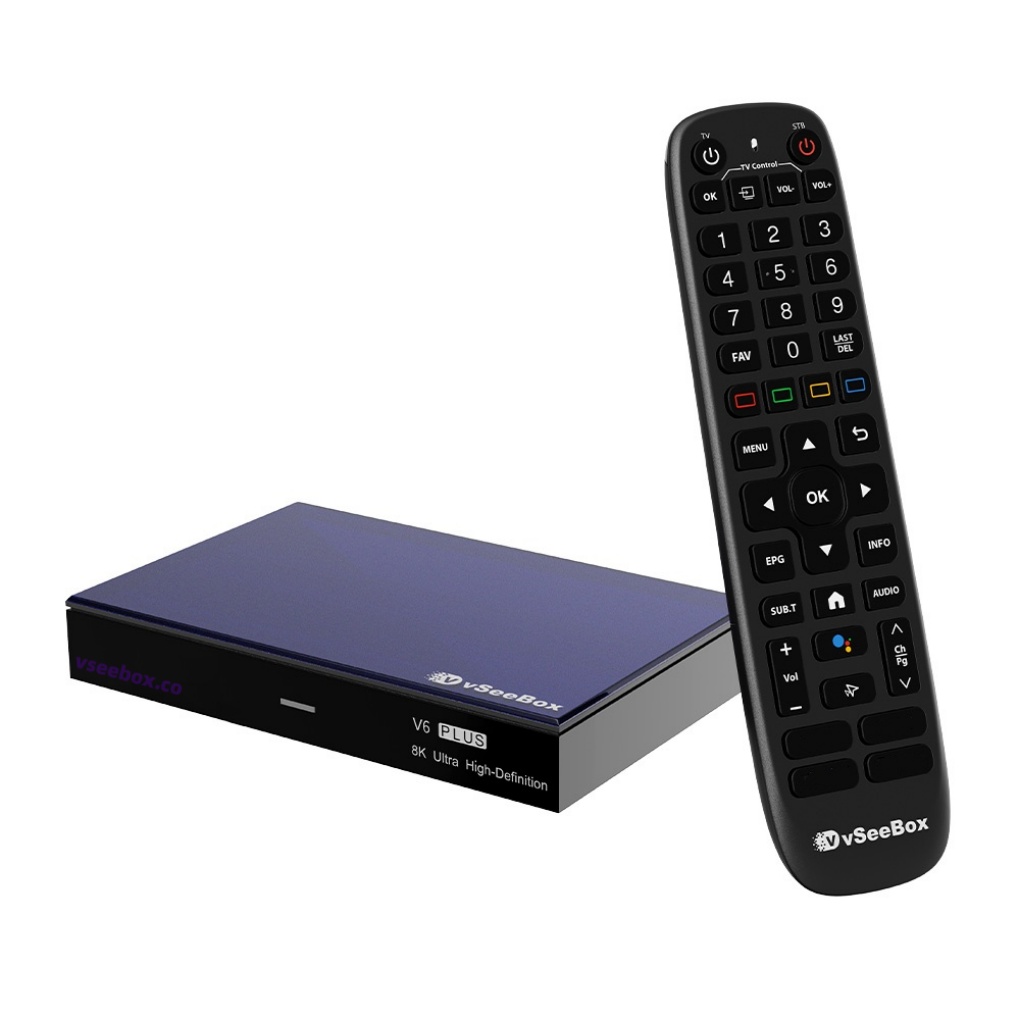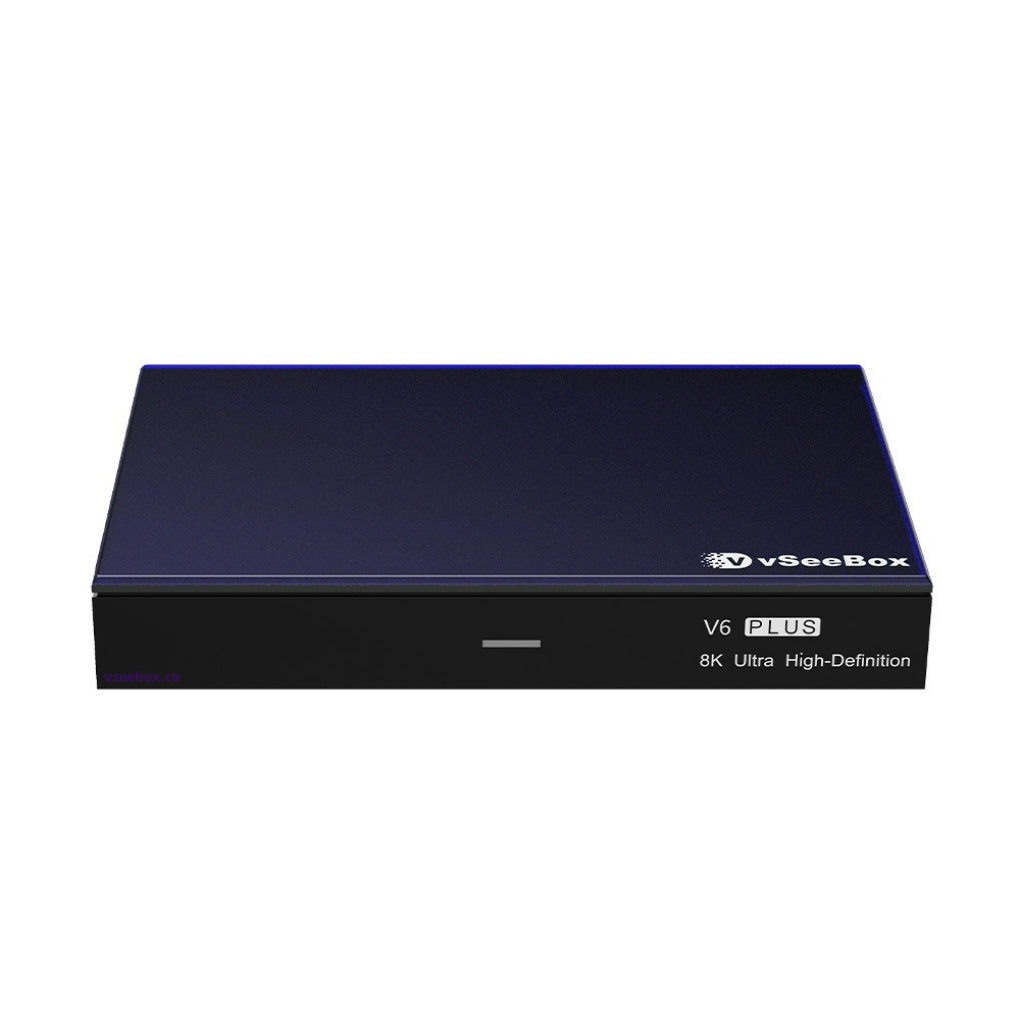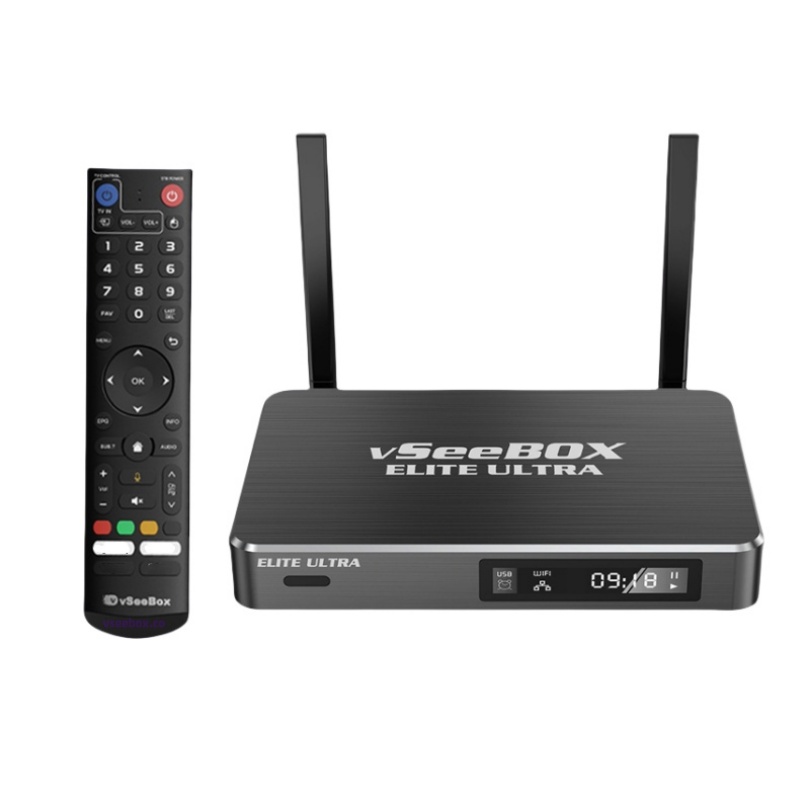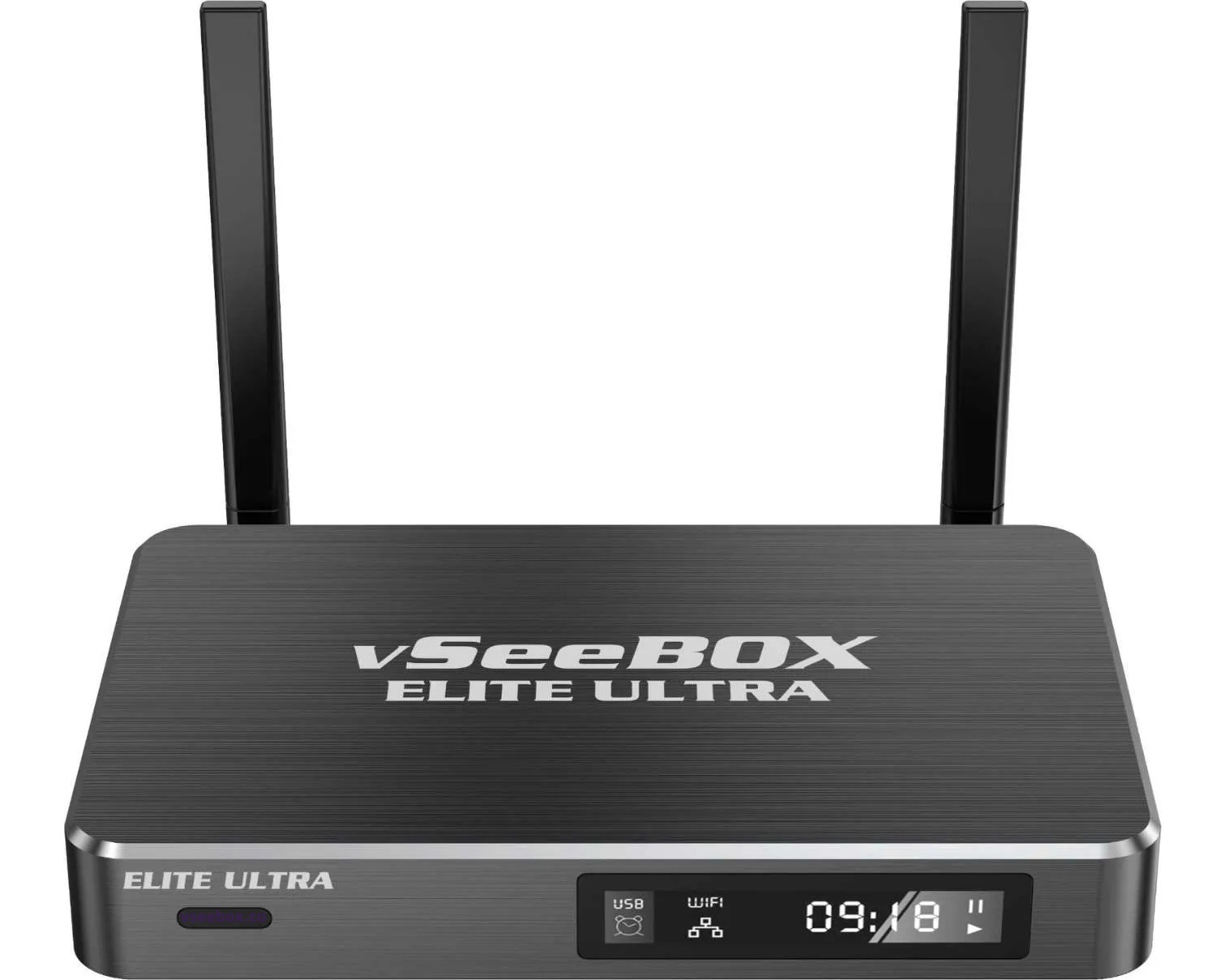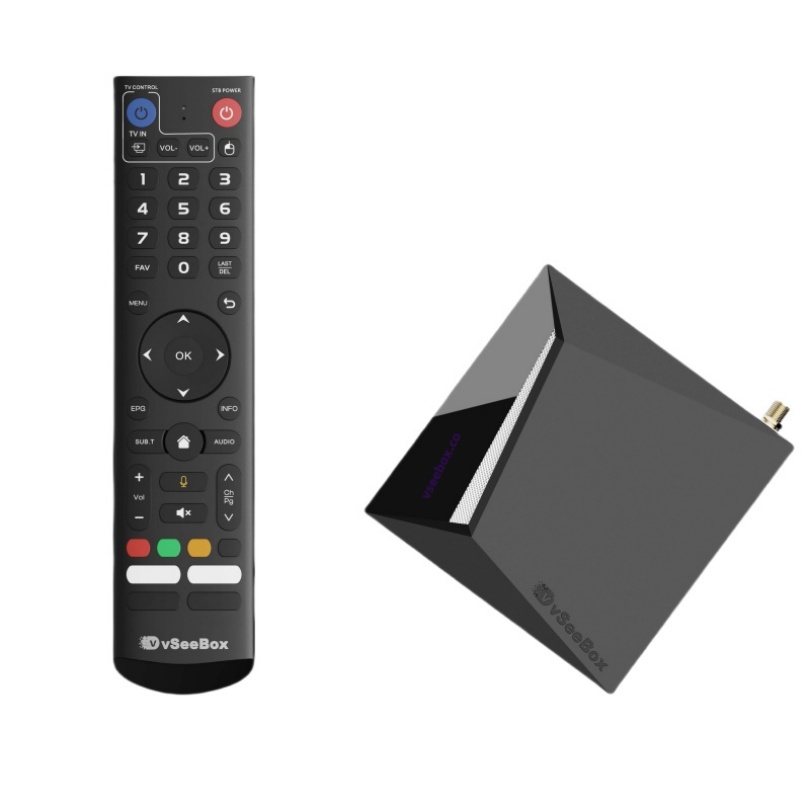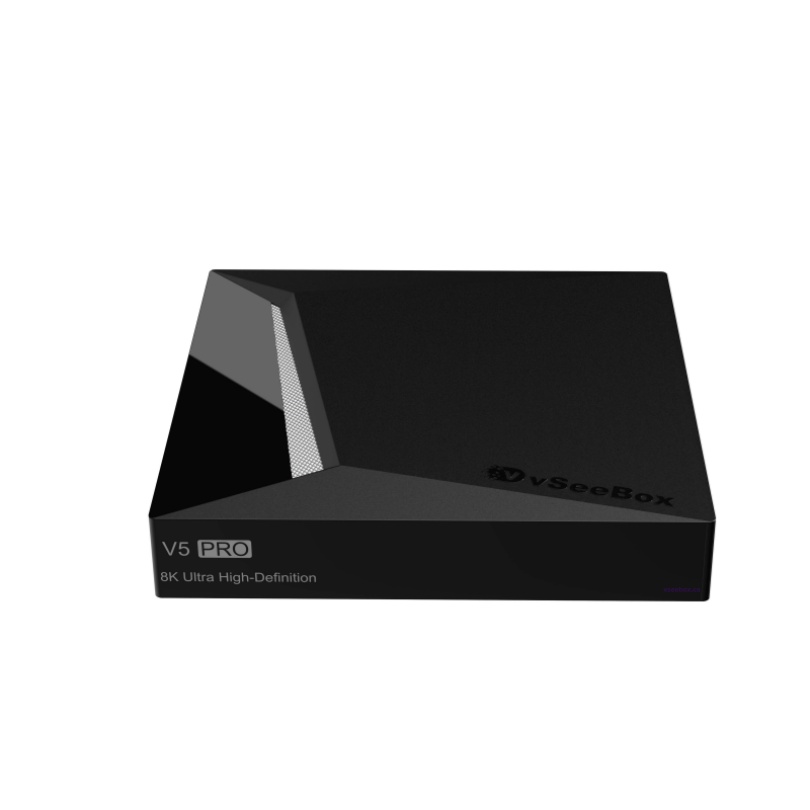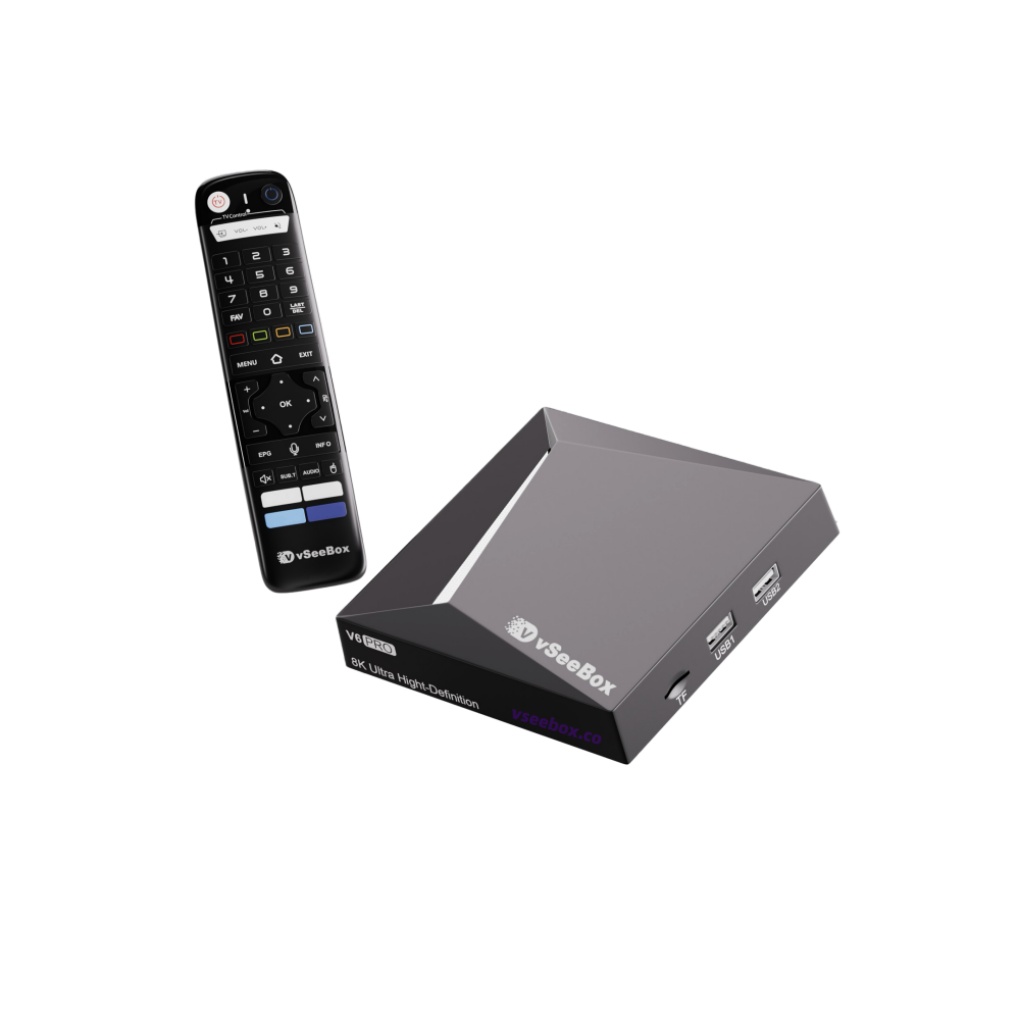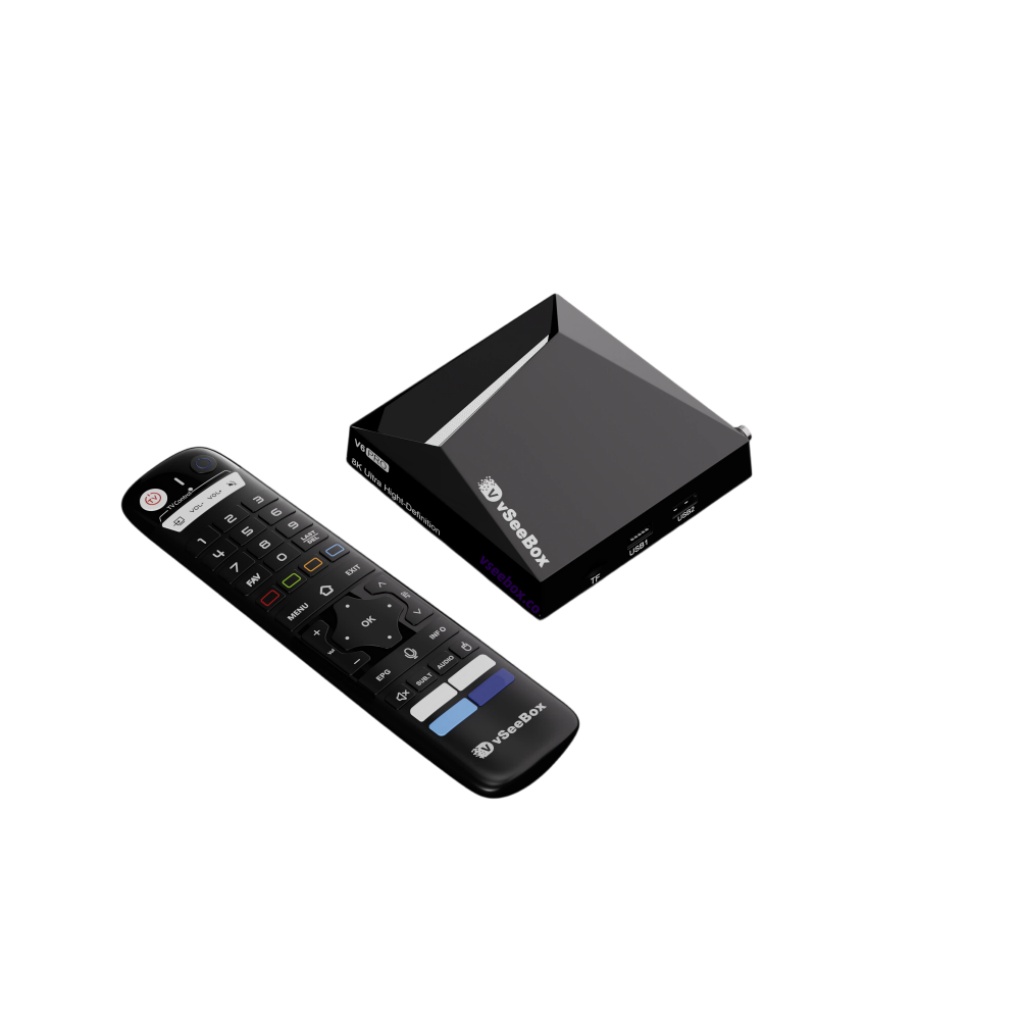
The system downloaded the application. After the download was complete, the system prompted me to upgrade the device firmware. After the firmware was installed, the device restarted and then got stuck on the boot screen without any changes. I also tried resetting the device using the pinhole camera on the back, but the problem persisted.
Preparation (vSee Box, Pin, Power Supply)
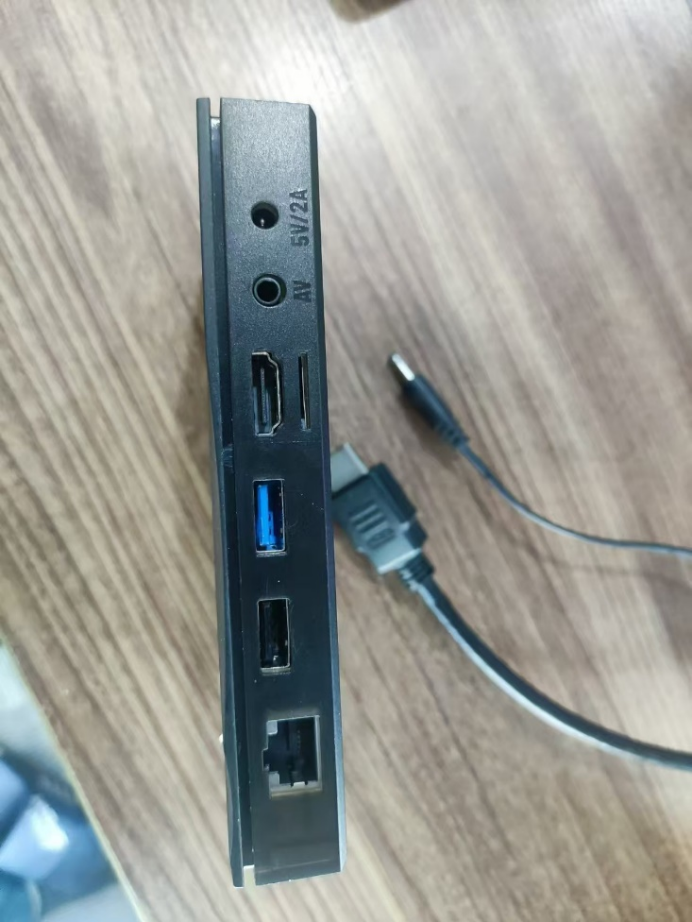
1、First, connect the HDMI cable and use the pin to press and hold the reset button on the AV interface.
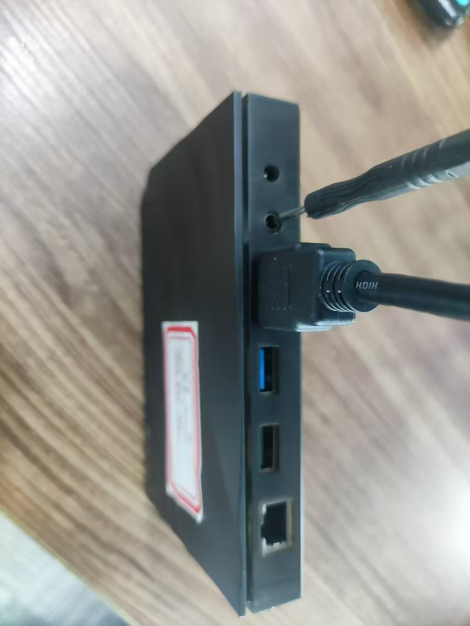
2、Connect the power supply.
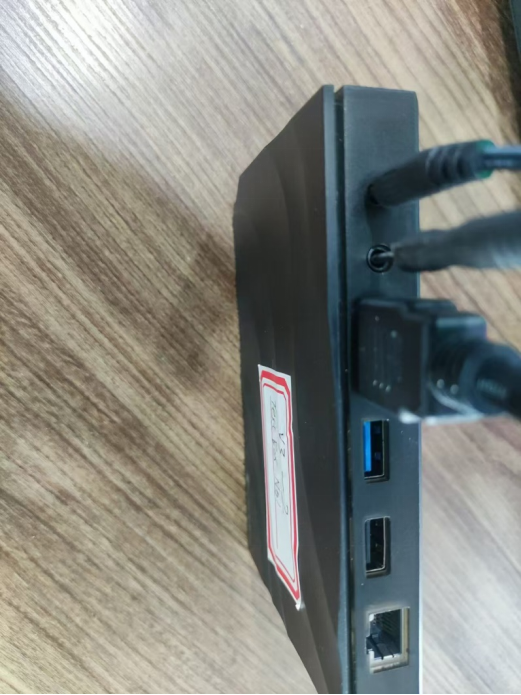
3、When the screen displays the boot logo (the first frame), release the pin and wait for twenty seconds. The box will enter Android Recovery. (If it gets stuck here, unplug the power and start the process over.)

4、Once the box enters Android Recovery.
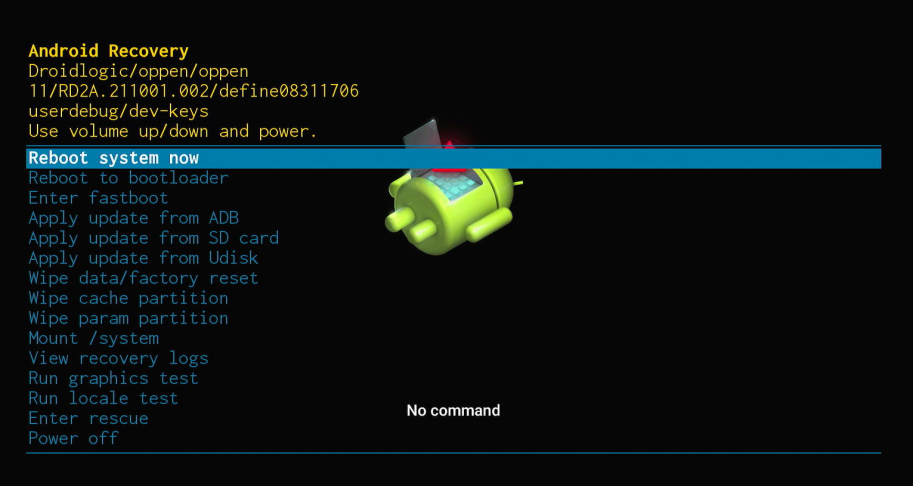
5、Select Wipe data/factory reset.
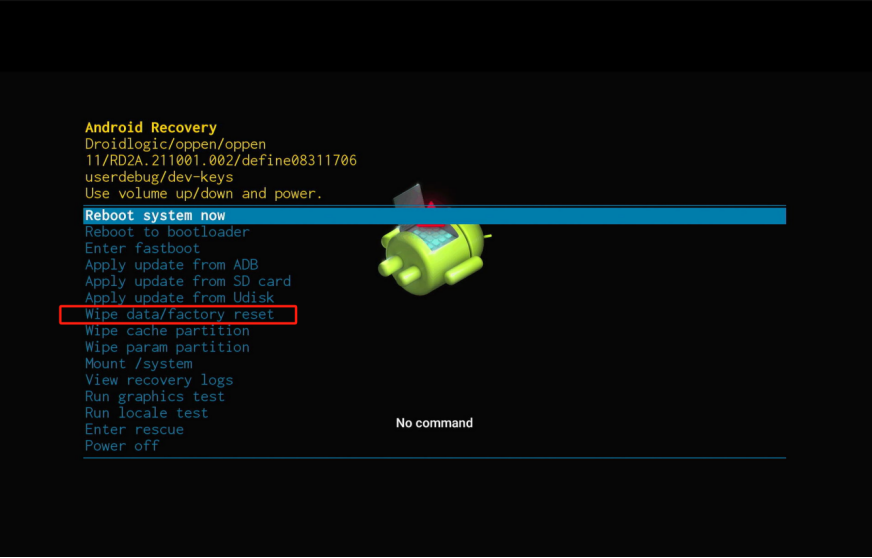
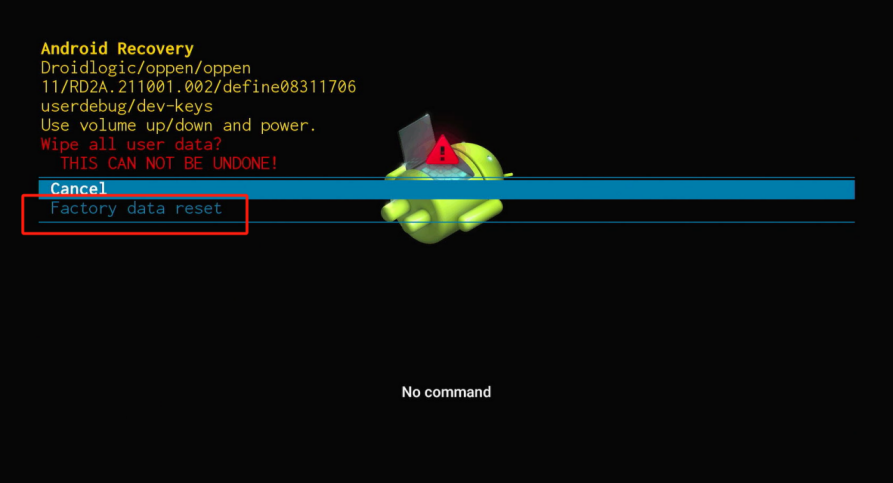
6、After entering Wipe all user data, select Factory data reset..
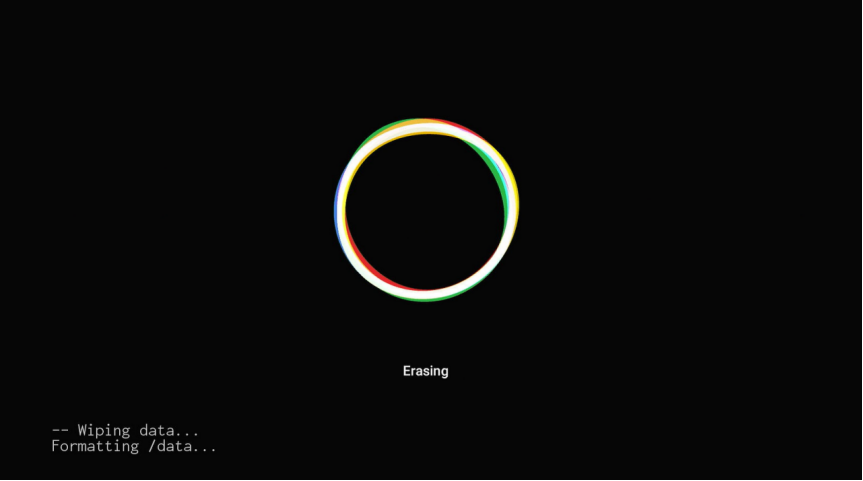
7、At this point, it will enter the data clearing state.
8、Once the reset is complete, it will return to Android Recovery. Select Reboot system now.
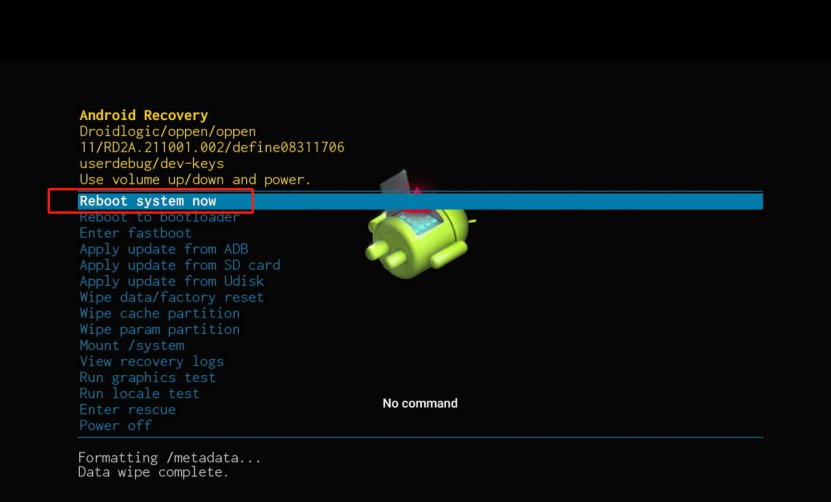
The box will restart. (lf it gets stuck during the boot process, unplug and reconnect the power to restart the box.).