

FAQ

FREQUENTLY ASKED QUESTIONS

vSeebox troubleshooting and some FAQs, as well as common setup issues.
 

VSEEBOX GENERAL QUESTIONS

Our customer support is available Monday to Friday
Average answer time: 24h
Contact Us
ANY FURTHER CHARGES/SUBSCRIPTIONS AFTER THE PURCHASE OF THE VSEEBOX?
vSeeBox is a hardware media device that supports installation of compatible apps and streaming services.

Some third-party applications may require separate accounts, subscriptions, or internet services depending on provider policies..
What is your question?
Use this text to answer questions in as much detail as possible for your customers.
WHERE CAN I USE VSEEBOX?
You can use it anywhere in the world! vSeeBox is not just one of the best products for home entertainment, you can take it for traveling/road trips.
ANY REQUIREMENTS FOR USING VSEEBOX?

You just need a TV/monitor with an HDMI port, and WiFi/Ethernet network connecting to vSeeBox, and then it works.

We recommend an over 8mbps network with Ethernet for smooth streaming.

How to buy vseebox correctly
We are an authorized vSeeBox distributor.. We do not support after-sales service for vseebox purchased from platforms such as Facebook and Amazon.
DO I NEED A VPN TO USE VSEEBOX?
VPN is not a must to use vSeeBox.
WHAT INTERNET SPEED DO I NEED FOR VSEEBOX?

We recommend at least 8 Mbps network speed for streaming on vSeeBox with High definition video quality. We also recommend Ethernet hardwire for stable and fast network.

For VOD, you can adjust the picture quality from high quality to low quality. For high quality, we recommend 15Mbps for seamless streaming without buffering.

VSEEBOX SETUP, INSTALLATION, AND HOW TO USE

HOW CAN I UNINSTALL APPS ON VSEEBOX?
On Home page, System Settings, Apps, See all apps, select the app(s) you want to uninstall, and click Uninstall.
HOW CAN I UPDATE MY VSEEBOX?
on Home Page, in Settings section, select the Software update. You can check if any new update patches with Online Update.
How to restore the VSEEBox system
In case of accidental deletion of system files or emergency, you can perform a factory reset.
Operating Instructions
How to set up the connection to the remote control
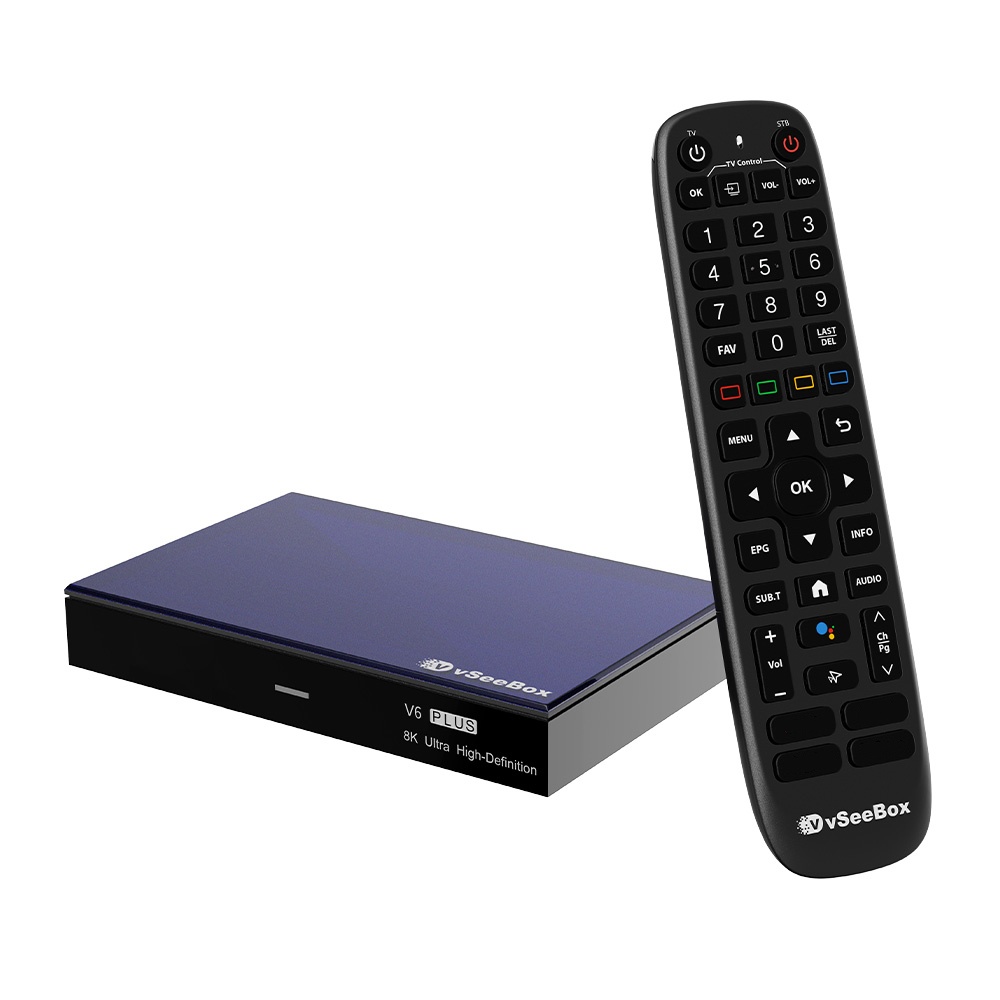
This article provides a detailed overview of the advantages and functions of the vSeeBox Remote Control. Designed to address common challenges associated with traditional remotes, the vSeeBox enhances user convenience through a simplified interface and thoughtful partition design, making it especially easy for older adults to use.
Operating Instructions

TV AND PLAYBACK

HOW CAN I UPDATE THE ?

1st way: If there is a new update patch available, there will be a pop-up window to ask if you want to update the Heat Live app. Press yes and it will finish the update automatically.

2nd way: Visit the MENU page, visit Info page, and click the button “Check Update”

VOD VIDEO-ON-DEMAND

HOW CAN I CHECK MY FAVORITE VOD LIST?

You can find the Favorite on the top side of the VOD main page. To cancel a favorite, you can hover over the movie/tv series and press the Menu button on your remote to cancel your favorite.

HOW CAN I CHANGE THE PICTURE QUALITY?

Some of our VODs have different quality versions for you to choose from. You can adjust according to your network environment. Press Menu button on your remote during the VOD streaming, in Quality, you can choose High / Normal / Low quality, high quality maybe up to 4K version

HOW CAN I TURN SUBTITLES ON/OFF?

Some of our VODs have different subtitles even in different languages for you to choose from. Press the Menu button on your remote during the VOD streaming, in Subtitles, you can choose None (for closing subtitles), or subtitles in different languages.

HOW CAN I CHANGE THE TRACK LANGUAGE OF A VOD?

Some of our VODs have different track languages for you to choose. Press the Menu button on your remote during the VOD streaming, in Track, you can choose English, Español and more according to availability.

Other questions

Network issue – say remembered instead of connected

Thank you for your help first. If the network is indicating "remembered" but not "connected", it means the password error. You can re-connect the network by: 3rd on row home screen - system settings - network - click ok on your wifi network - forgot network.

Shut down / sleeping mode – which shall I choose?

We suggest shutting it down (power off) if you are not using it. It will release the internal storage and make the box work more smoothly with next usage.

The sleeping mode is for a short period of not using it. The tv box would not be turned off completely for a faster wake-up time.

Contact us

Contact us

Cart

loading