

vSeeBox V3 Plus Instructions
Thank you for purchasing the vSeeBox V3 Plus digital streaming hardware.This device allows you to access the most recent movies, pay-per-view events,
sporting events, and every live channel imaginable. This is all available in your initial purchase
of the hardware; there are no recurring costs. The vSeeBox will provide “over-the-air” updates
as long as the device is connected to the internet.
Note: You will need two AAA batteries for the remote, as it does not come with them.
Unboxing, Physical, and Software Setup
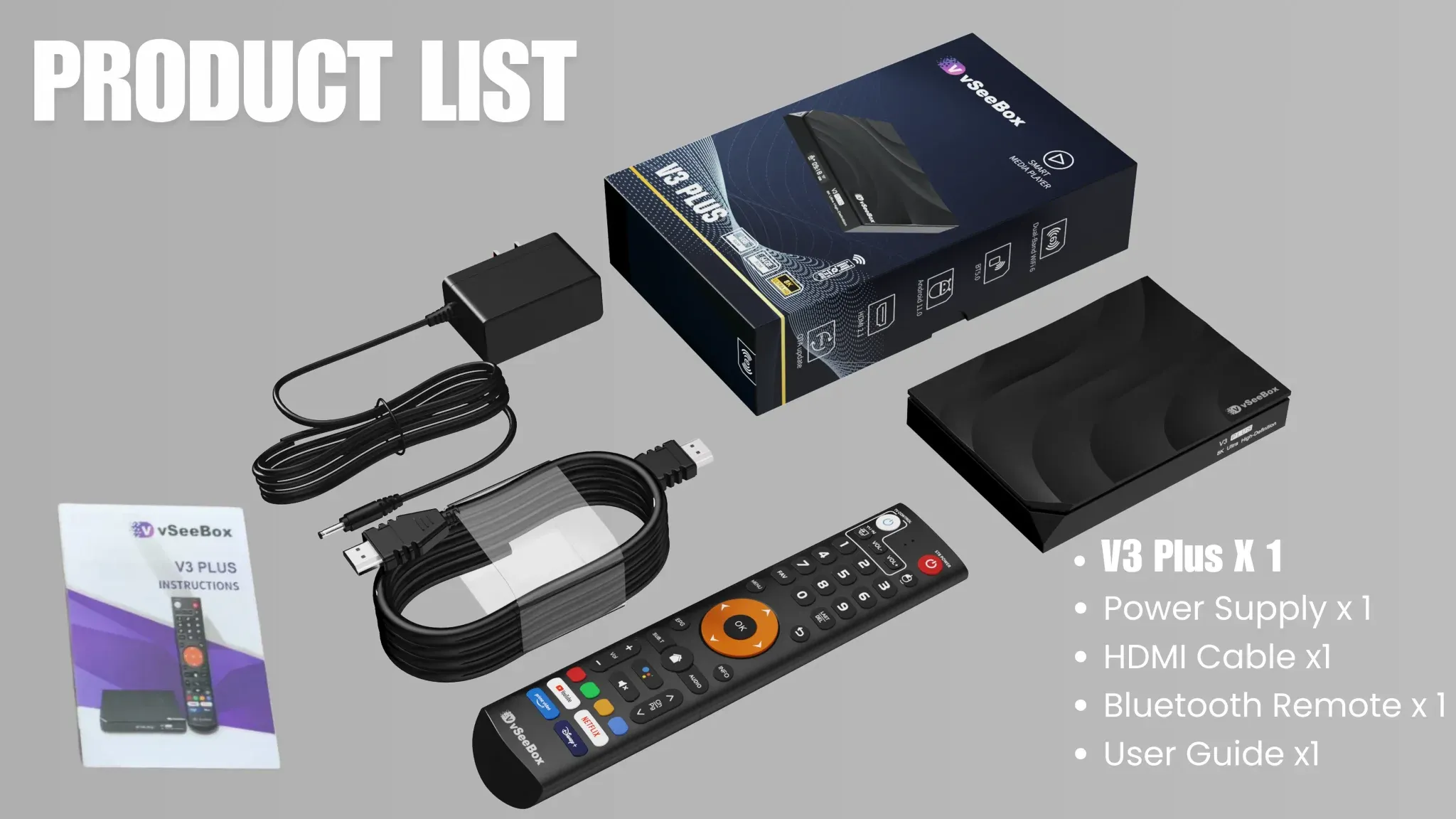
What’s included in the box?
- vSeeBox - V3 Plus Device
- Power Adapter
- HDMI Cord
- Remote Control
How do I connect the box to the TV?
- When looking at the back of the box, connect the power adapter to the far right port on
the back of the vSeeBox.
- Connect the vSeeBox to your TV with the HDMI cable provided. If you already have an
HDMI cable plugged into your TV you wish to use, you can use it as well.
- Optional: If you are connecting your vSeeBox with an Ethernet cable for a direct internet
connection, connect the vSeeBox to your router now.
- At this point, your vSeeBox should be powering on, and you will see “Boot” on the box's
display screen. Ensure the source on your TV matches whatever HDMI port you plugged
the box into on your TV.
How do I proceed with the software setup?
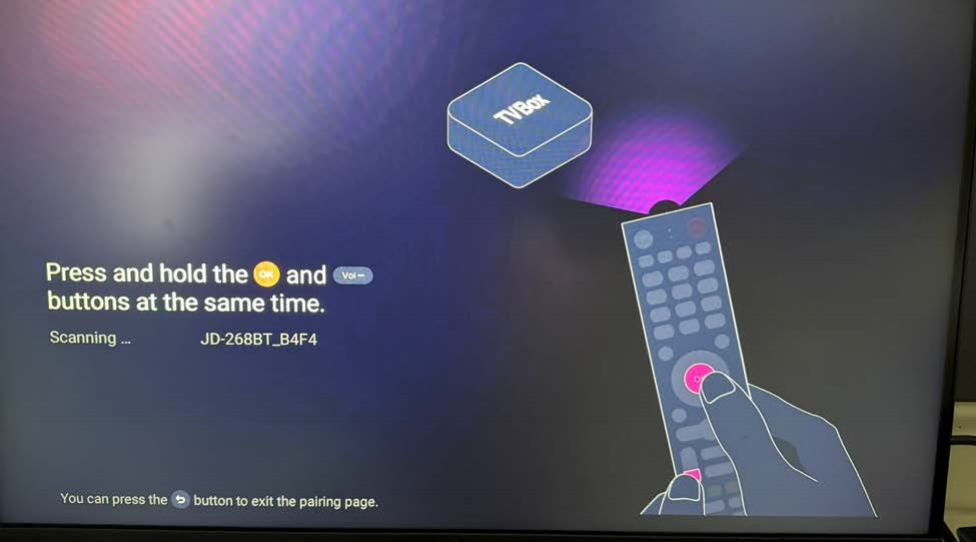
- After the box boots up for the first time, it will bring you to a screen to pair the remote
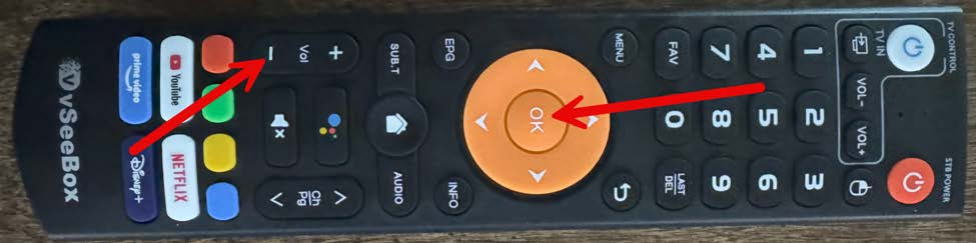
control. Ensure you have put the batteries into the remote, then press the “OK” and
“VOL—” buttons at the same time while pointing the remote in the direction of the box.
The screen will tell you when to release the buttons and when the remote has been
paired successfully.
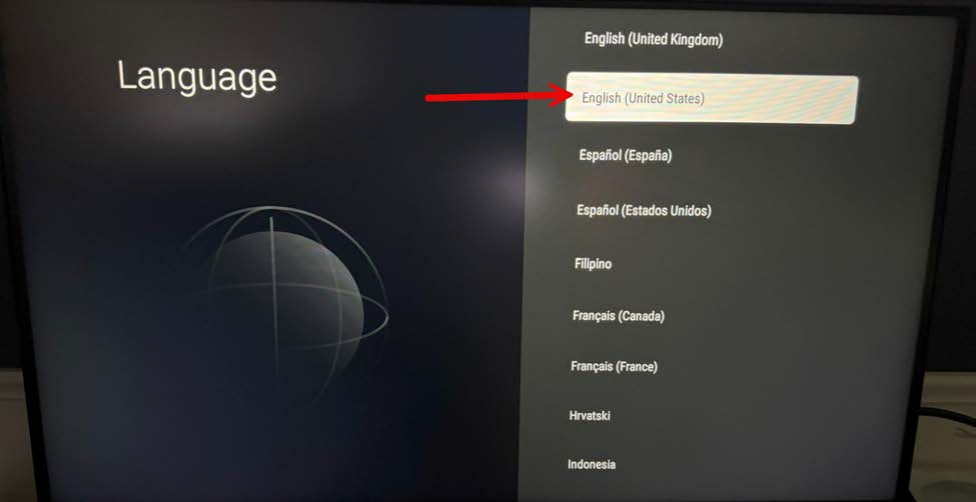
- Select the language, then press OK to proceed to the next step.
Adjust the screen ratio if needed by selecting Zoom in screen or Zoom out screen,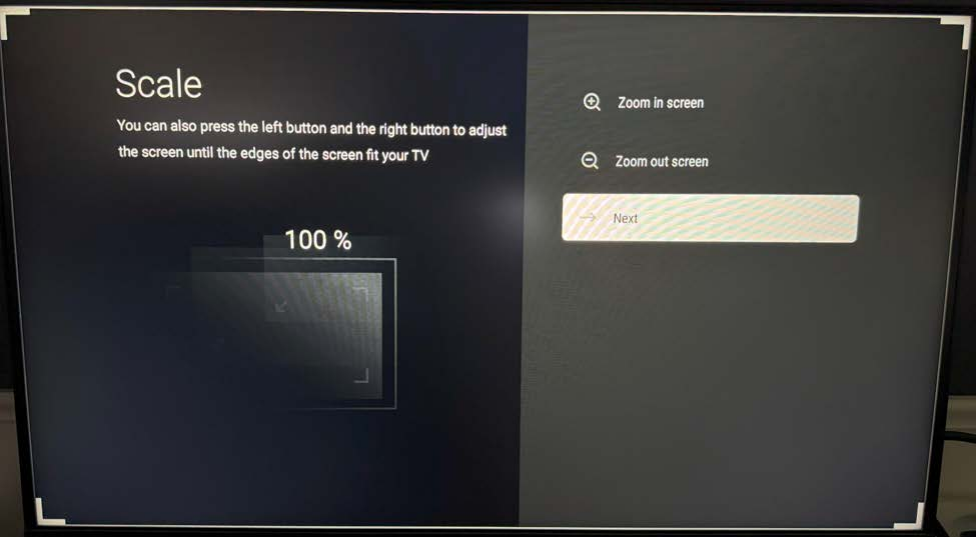
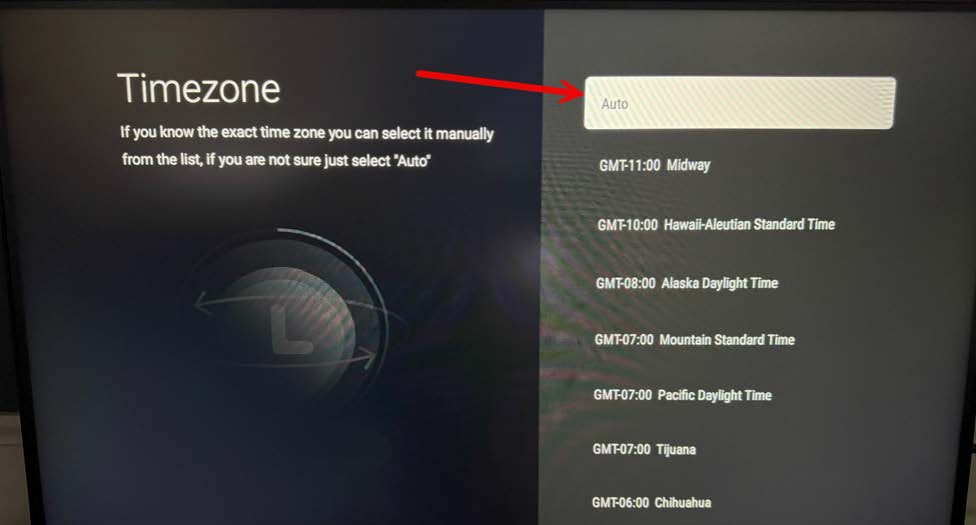
4.Select the time zone and then press the OK button.
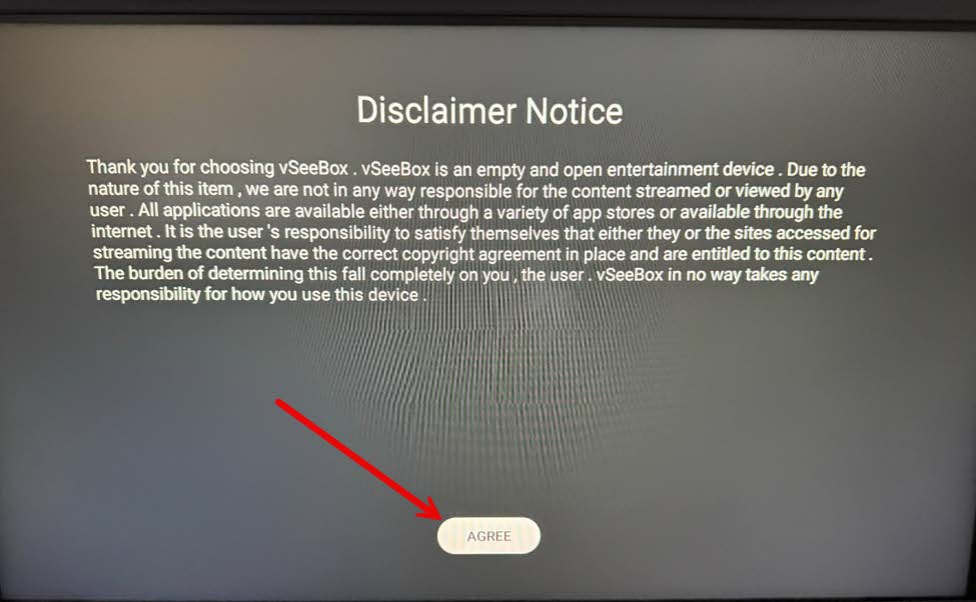
- Read the disclaimer message, then press the OK button.
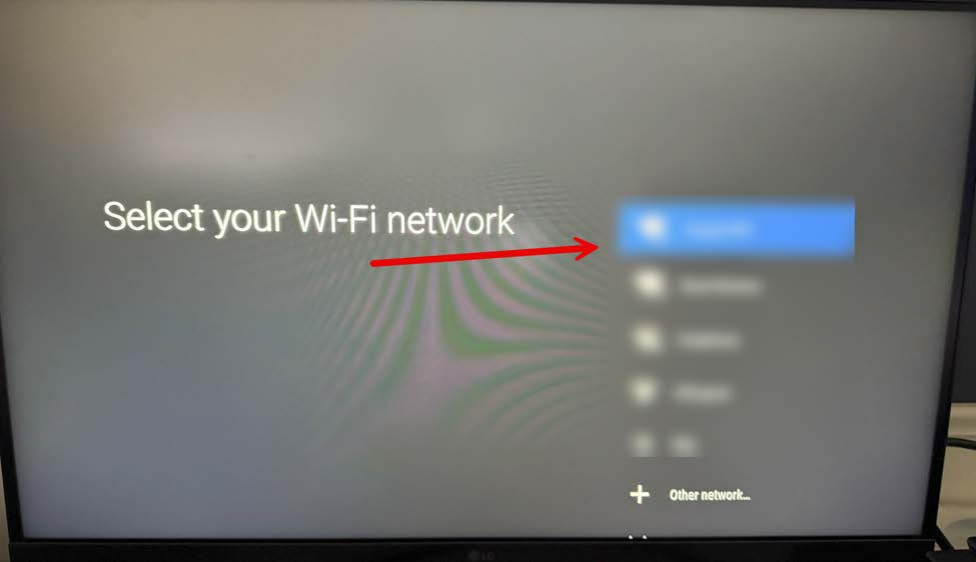
- If using Wi-Fi, you will now be prompted to select your Wi-Fi network. Select your Wi-Fi
network from the list and input your Wi-Fi password; you should see a Connection
Successful message.
- After connecting the device to the internet, the box will begin downloading and installing
the applications and the default configuration. This usually takes around five minutes,
depending on your connection speed.
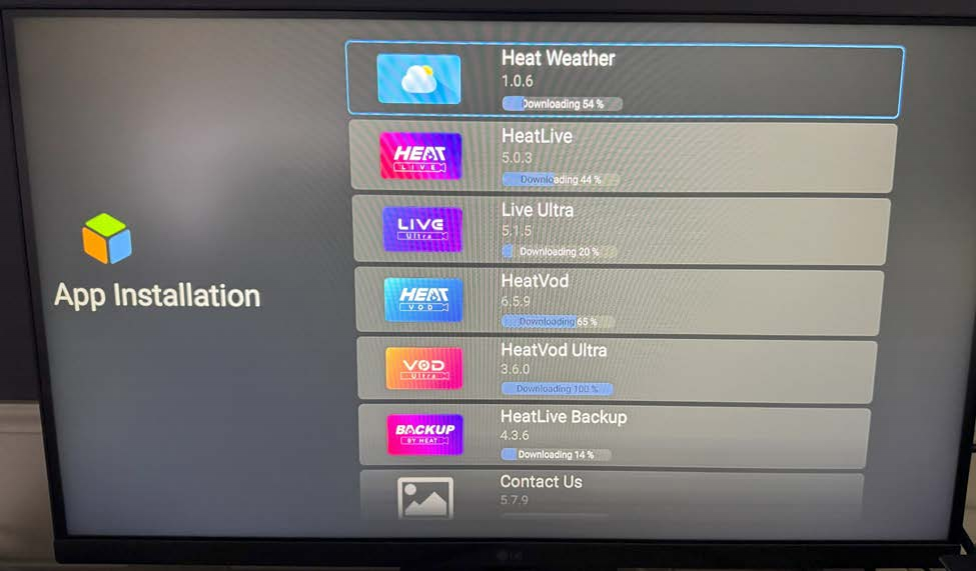
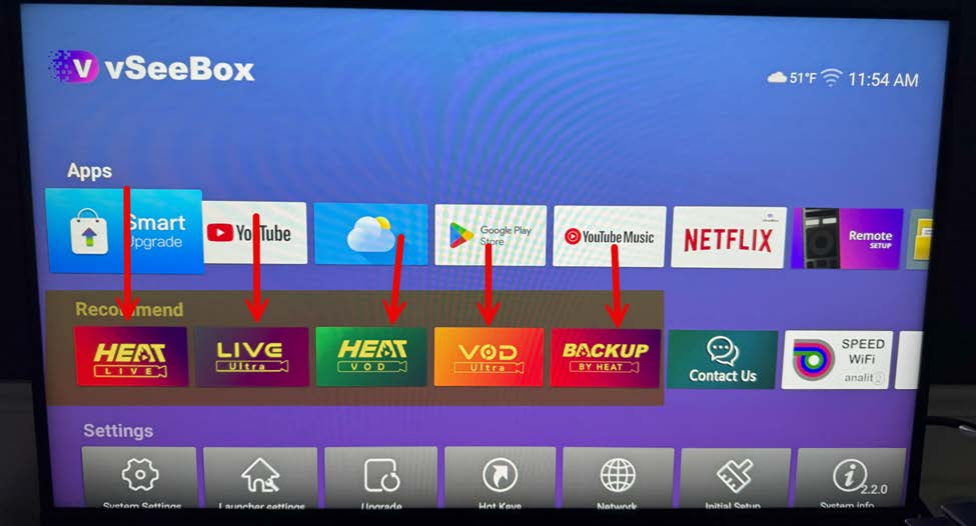
- After the installation is complete, the box will show the main screen with all of the
available applications.
Programming the vSeeBox Remote to the TV
- To program the vSeeBox remote to your television to control the volume and power
on/off, you will need the original remote control for the TV.
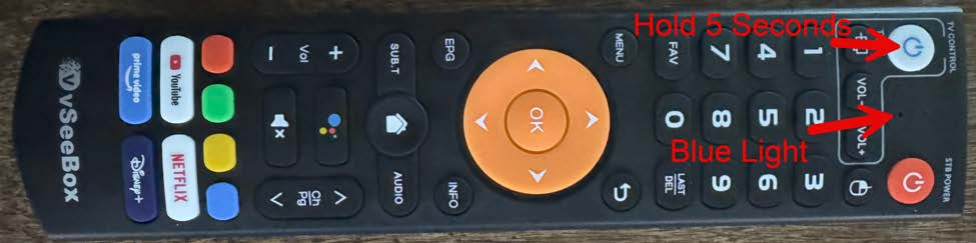
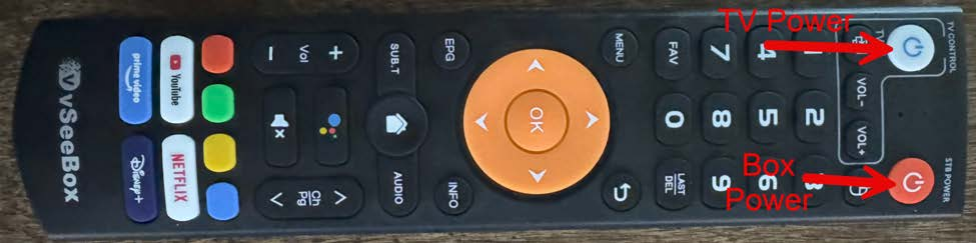
- On the vSee remote, hold the blue/white TV Control power button in the top left corner
for 5 seconds. The blue light on the remote will go from blinking to solid. Once it goes to
solid, it is in pairing mode.
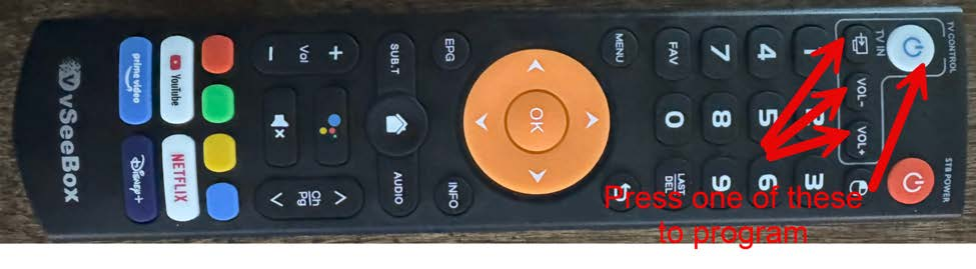
- On the vSeeBox remote, press one of the four buttons in the top left corner to program.
(Power On/Off, TV IN, VOL -, VOL +). The blue light will begin blinking slowly, which
means it is ready to pair with the button you just pressed
- Take the original TV remote and point the remote controls together so the eyes are
facing one another. Then, press the button you are trying to program for the TV. For
example, if in Step 3 you pressed VOL -, press VOL— on the TV remote as well, with
the remotes facing each other. If successful, the blue light will flash three times.

- Continue this process for the remaining buttons. Note: The “TV IN” button doesn’t need
to be programmed if you aren’t switching sources on the TV.
- After you have completed the programming of the TV remote, press the OK button on
the vSeeBox remote to exit pairing mode.
It is recommended to set the TV volume to the loudest you want it using the TV controls
on the top left corner of the remote. After setting the volume as loud as you want it, you
can use the Vol + and - buttons at the bottom of the remote, which control the audio of
the box itself.
Powering the Device and TV On/Off
To power your vSeeBox on and off, simply press the Red Power Button on the top right corner
of the remote.
To power on and off your TV after programming it with the steps above, you can use the
White/Blue Power Button on the top left of the remote.
Streaming Apps on vSeeBox
Note: It is not recommended to use the streaming applications on the vSeeBox, such as
YouTube, Netflix, Disney+, or Prime Video, as they are not stable.
The V3 Plus comes with five streaming applications, which are outlined below:
Heat Live
This is the application that will be used for all Live TV channels.
First Time Launch
When launching this app for the first time, you will receive a permission message; just select
Allow and press OK.
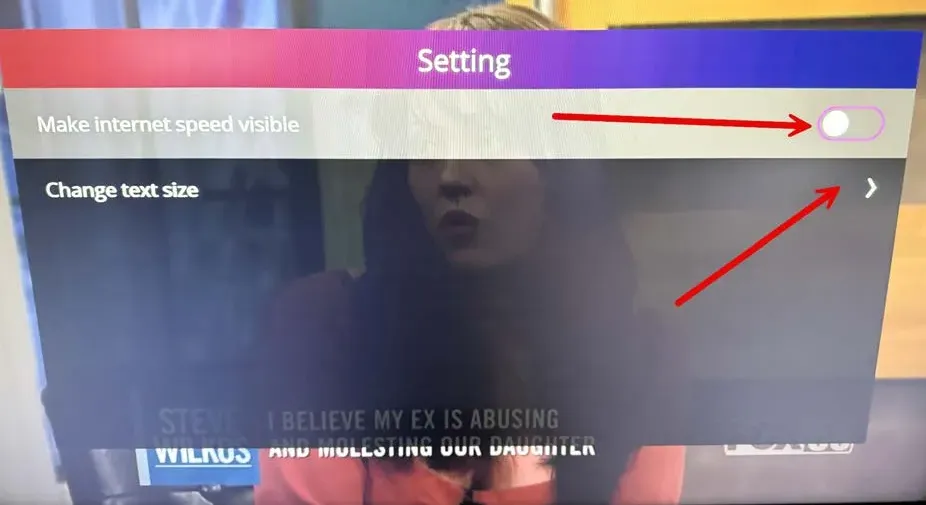
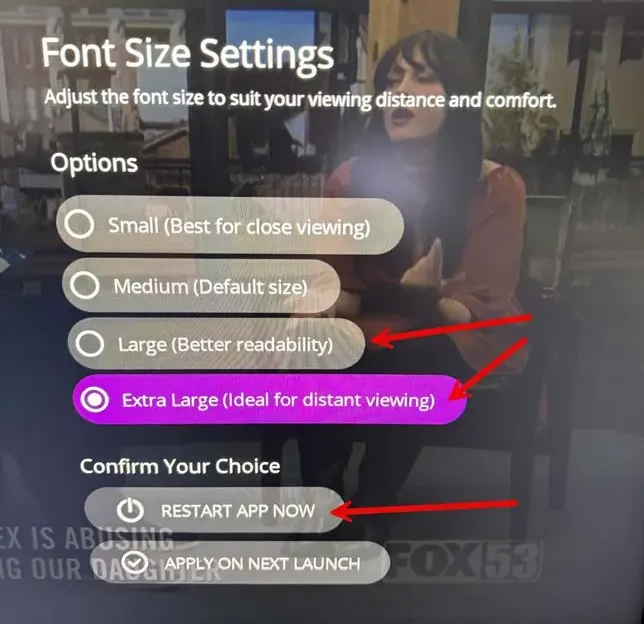
Optional: Press the Menu button on the remote, then go to Setting and press OK. Turn off the
Make internet speed visible option, then select Change text size → select Large or Extra
Large, then click on RESTART APP NOW.
TV Guide Option 1
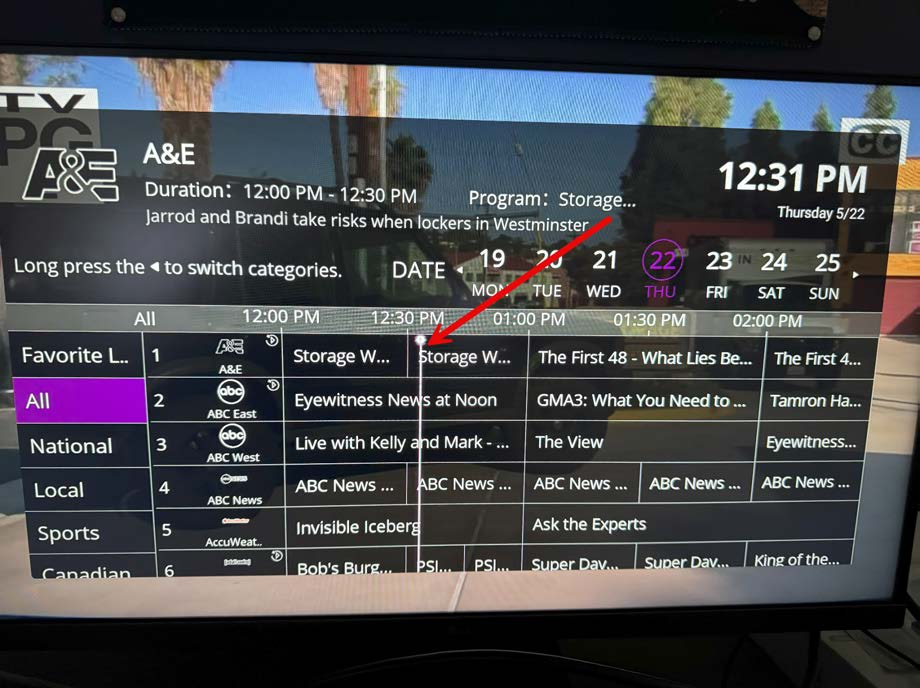
There are two different TV guide options. The first is available if you press the EPG button on
the remote.
On the EPG guide, you will notice a list of categories on the left side. To get to the left side to
select a category, hold the left arrow button next to OK.
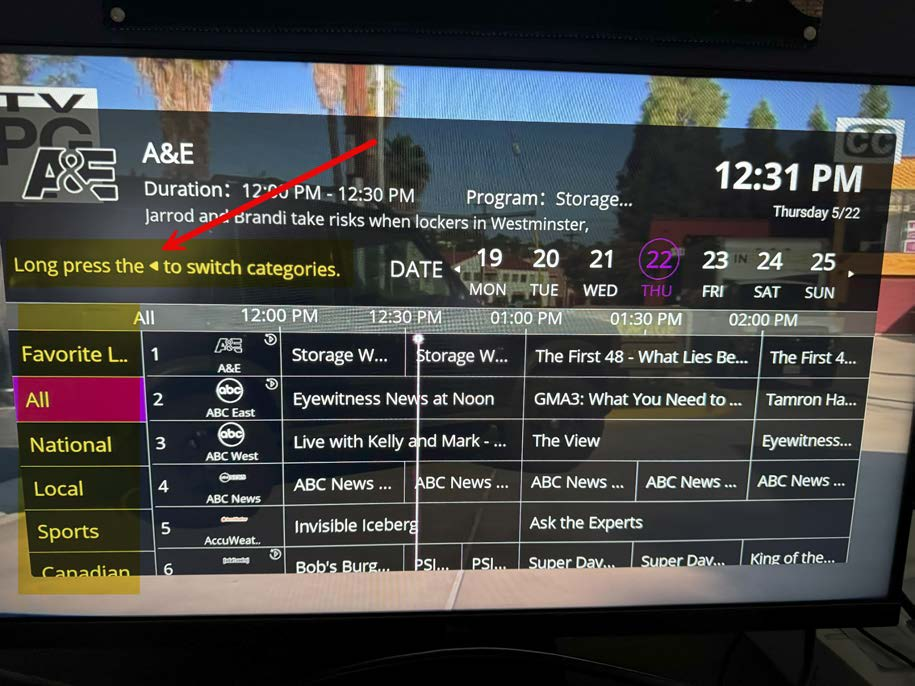
You will notice a line down the guide; this is the current time.
You can use the up/down arrows to navigate through the guide one by one, or you can use the
Channel Up/Down button to navigate by page.
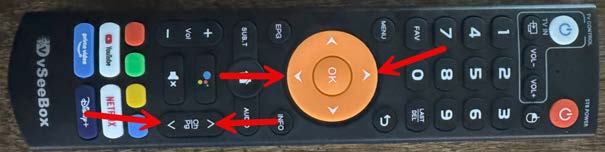
To change the date of the guide, press the up button and switch the date with the left/right
arrows.
Note: When you change the date, be sure to check the times at the top of the guide as they will
default to 12 AM. To go back to the current time, just move to the right and find the line on the
guide that indicates the current time.
TV Guide Option 2
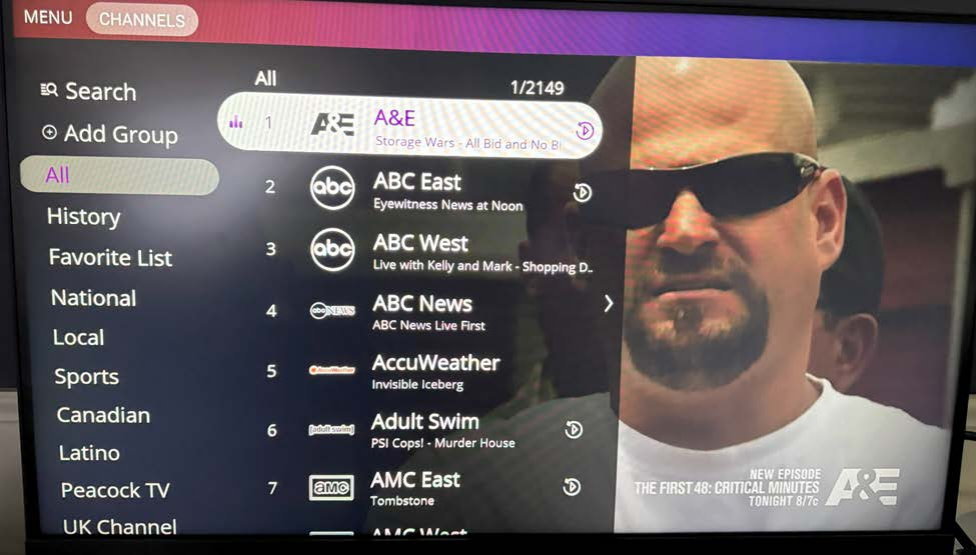
For the second guide option, when you are on a channel, press the OK button.
This guide also allows you to switch categories and search for a specific channel. It also allows
you to set favorite channels, which is in the next section.
Favorite List
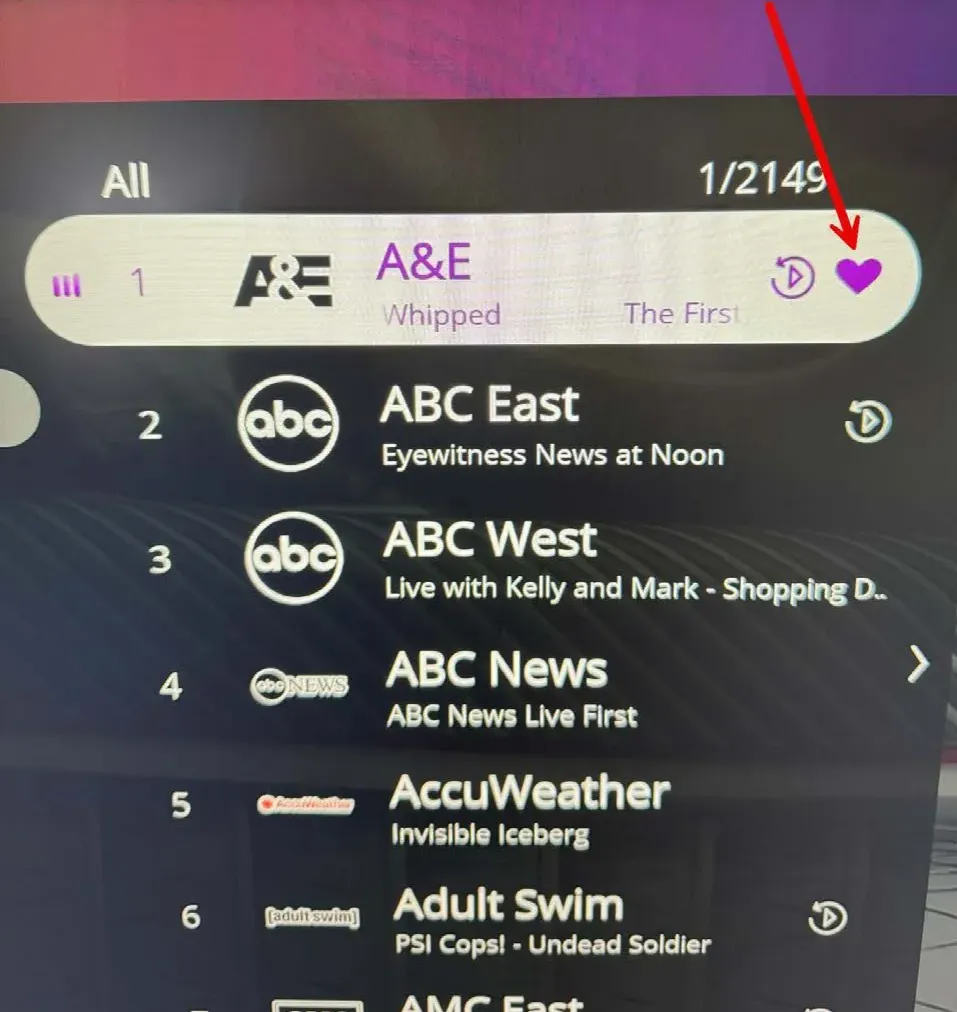
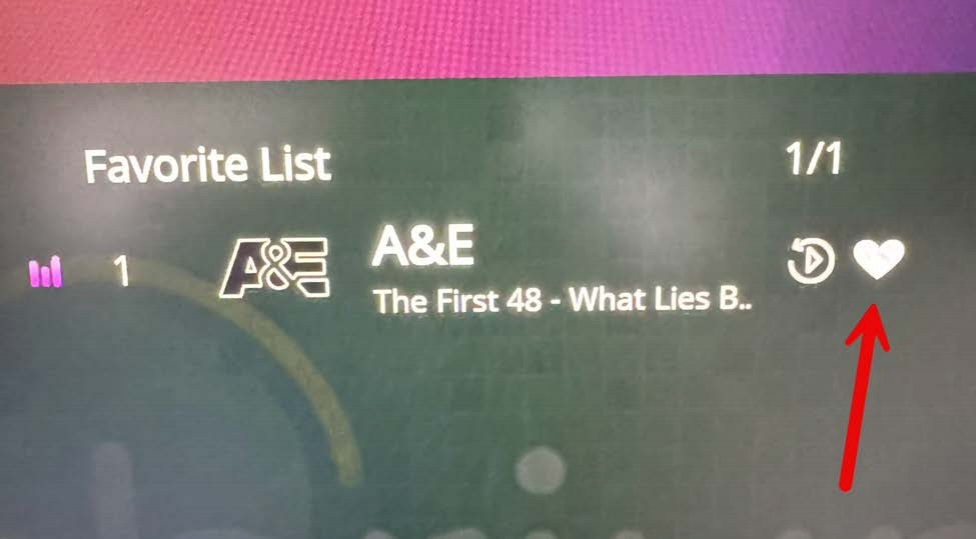
Additionally, you can set a Favorite Channel, which will appear in the Favorite List on the left
side. To set a favorite channel, find the channel you want to make a favorite in the second
guide, highlight it, and press and hold the OK button. You will notice a Heart appears next to the
channel. To remove a favorite, perform the same steps, and the Heart will disappear.
Voice Assistance
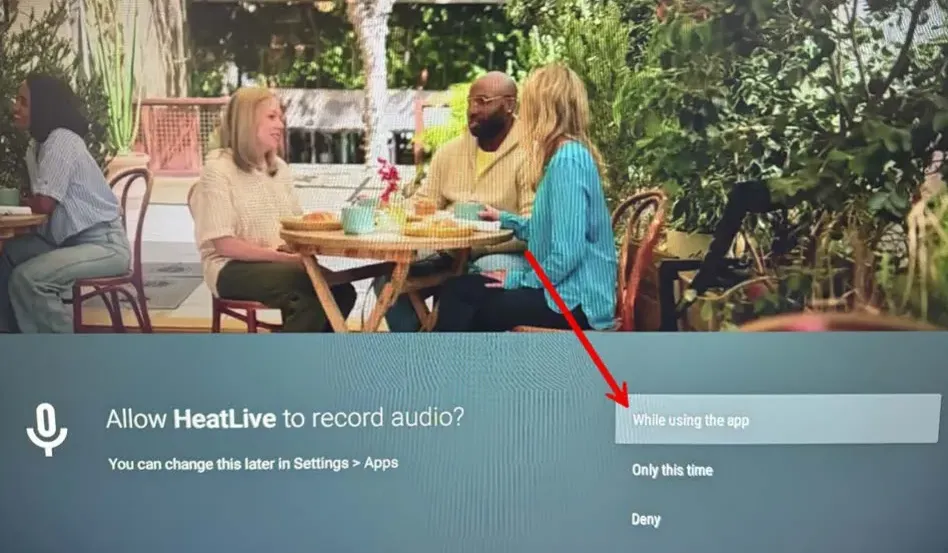
The last item I will touch on is the Voice Assistance button. This button is under the Home
button and above the Mute button. It has a blue, red, green, and yellow set of circles. When
pressing this button for the first time, you will receive a permission request. Select "While using
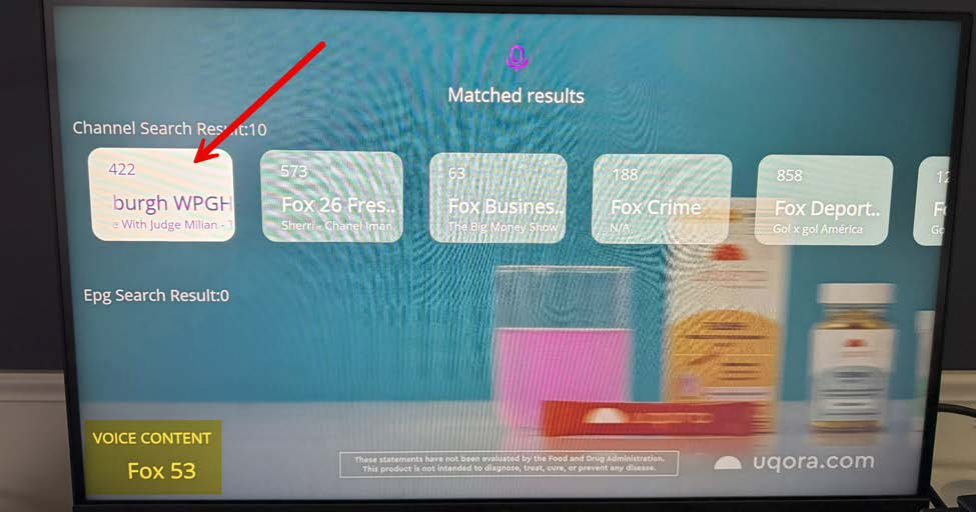
the app." You can push this button and speak a channel name into the remote, and the results
will display as follows. This is the quickest way to find a channel without looking through the
guide or knowing the number
Live Ultra
This is another app that has live channels. In the unlikely event a channel is missing from Heat
Live, you can use this channel to see if it’s available. All of the above information for Heat Live
also applies here.
Heat VOD
This app is used to access movies and TV series.
After opening the app, select which you would like to view, TV Series or Movies. You can also
view your History of previously watched items.
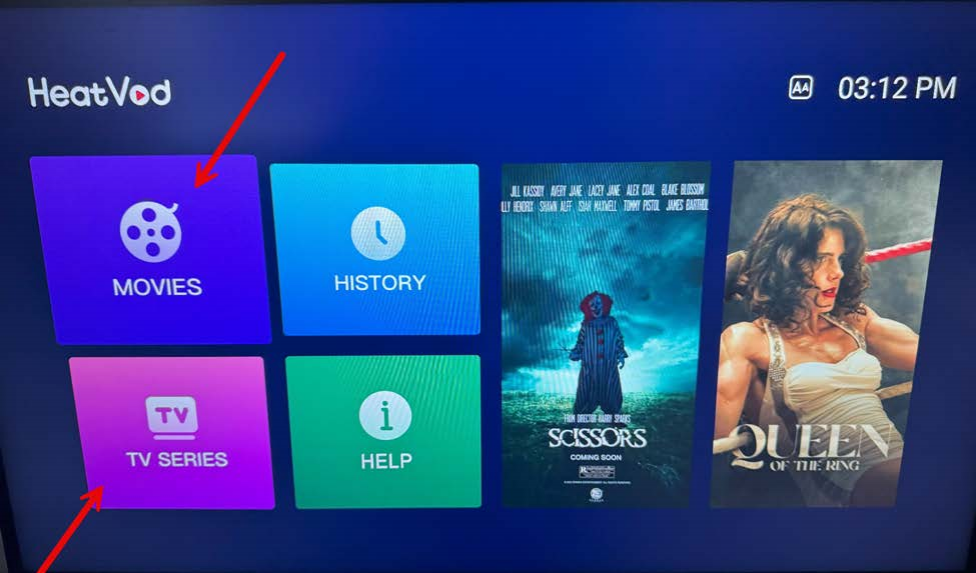
You can browse through the category list on the left or click the Search option and search for a
movie or series by title.
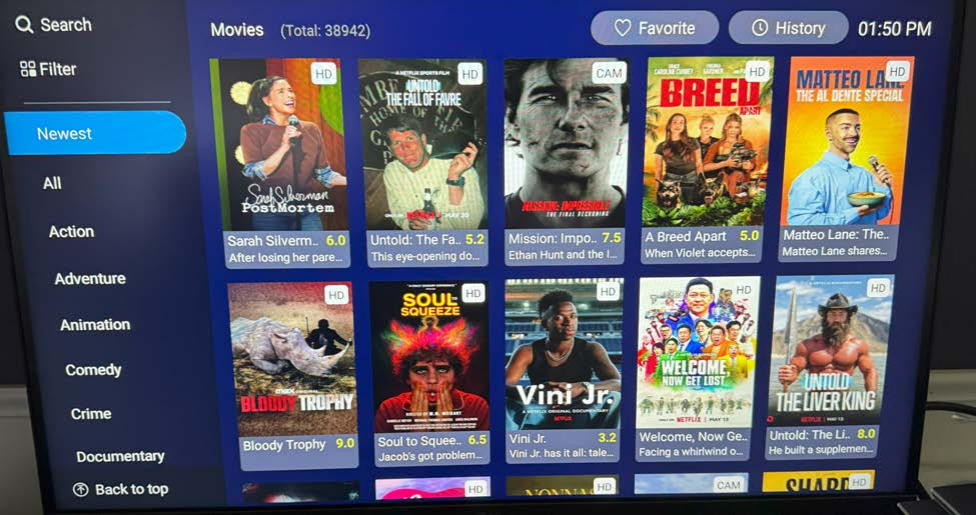
Note: If you are searching for a TV Series or Movie, make sure you select the correct one from
the home screen, as it won’t show all results for both.
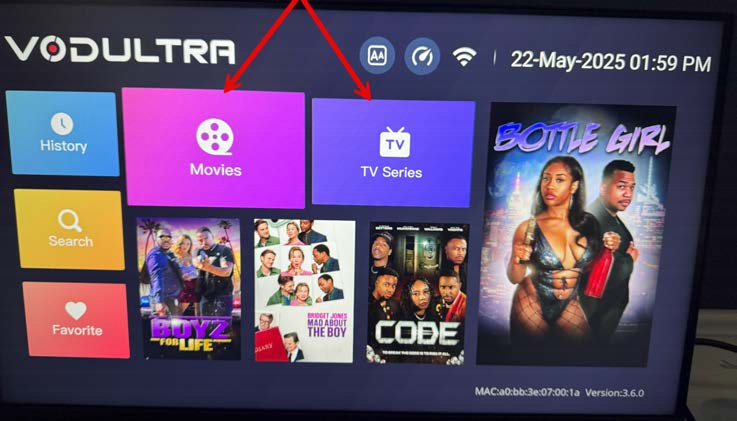
VOD Ultra
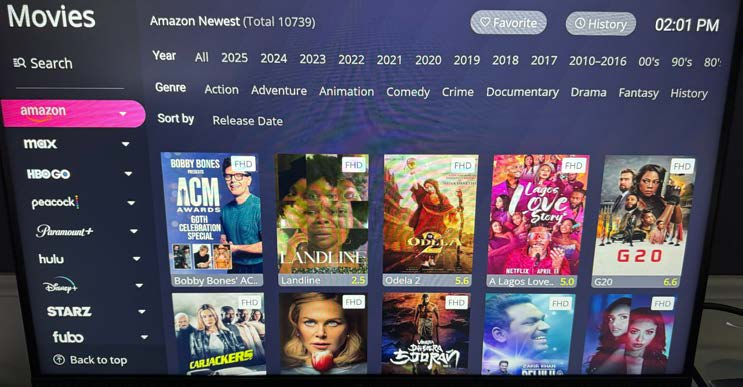
This is another app for streaming movies and TV series. The only difference is that this app
classifies the shows by streaming Platform.
Select the category you wish to watch, either Movie or TV Series.
You will now see that the left side classifies the shows and movies by the streaming platform.
You can also search for a show or movie if you couldn’t locate it on Heat VOD.
Backup by Heat
This is a backup live TV channel if the main Heat Live isn’t functioning. It works the same as the
Heat Live app
Please refer to pages 7 and 8 of the vSeeBox instruction manual that came with your device.