
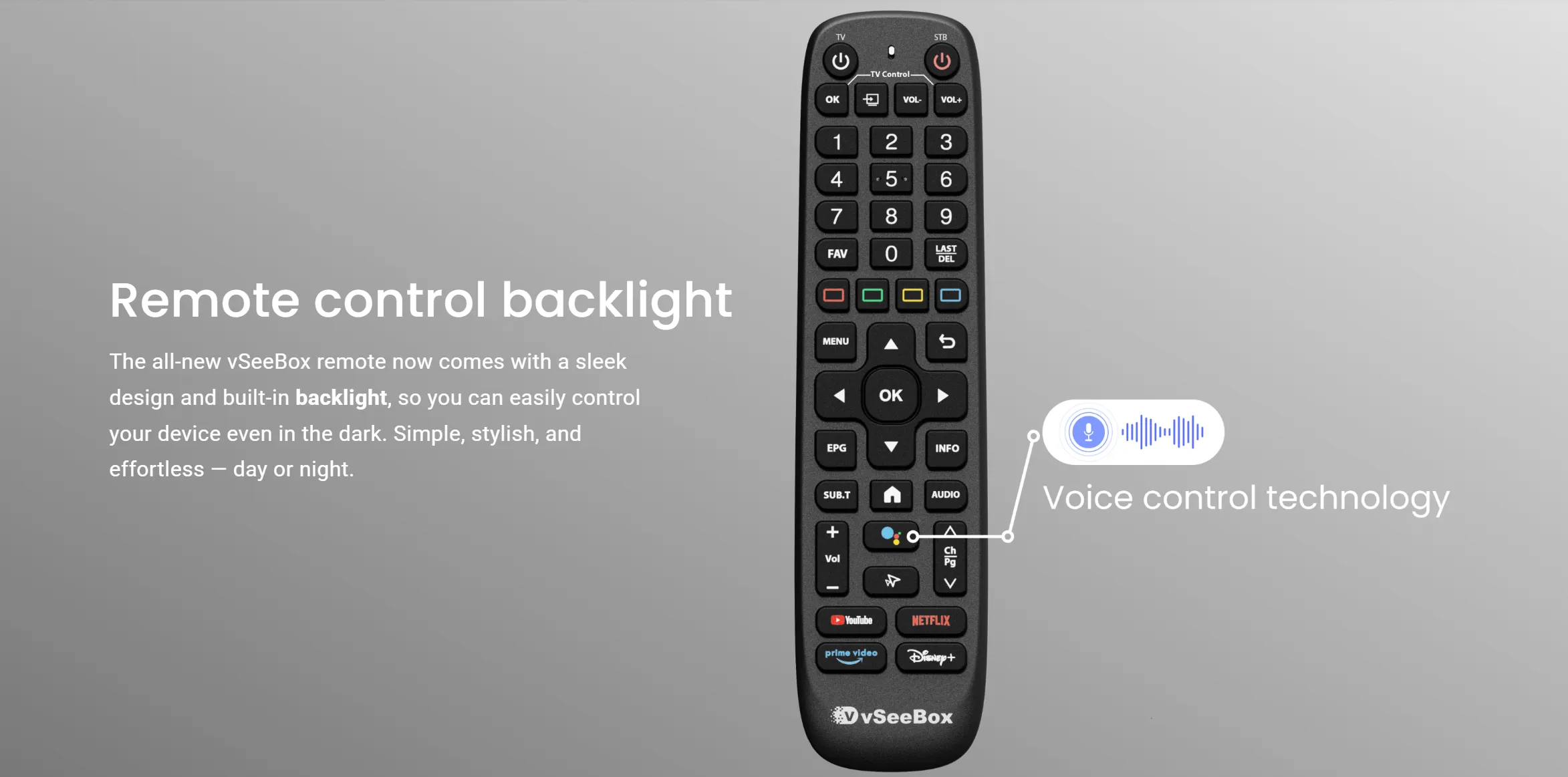
This article provides a detailed overview of the advantages and functions of the vSeeBox Remote Control. Designed to address common challenges associated with traditional remotes, the vSeeBox enhances user convenience through a simplified interface and thoughtful partition design, making it especially easy for older adults to use.
Table of Contents
-
Brief Introduction
-
Why Choose the vSeeBox Remote Control?
-
2.1 Challenges with Traditional Remotes
-
2.2 The vSeeBox Intelligent Remote: Simplifying TV Operation
-
2.3 Three Key Features
-
2.4 A Remote for the Whole Family
-
-
Complete Button Overview
-
3.1 Top Function Area: Core Control Center
-
3.2 Numeric Key Area: Shortcut Input & Favorites
-
3.3 Center Navigation Area: Menu Operation Core
-
3.4 Function Key Area: High-Frequency Operations
-
3.5 Shortcut App Area: Direct Streaming Access
-
-
In-Depth Look at Three Innovative Features
-
4.1 One-Click Direct Access
-
4.2 Voice Input
-
4.3 Mouse Mode
-
-
Advanced Tips: From Beginner to Expert
-
5.1 Favorites Management
-
5.2 Hidden EPG Features
-
5.3 Voice Command Library
-
-
What Users Are Saying
-
Frequently Asked Questions (FAQ)
Why Choose the vSeeBox Remote Control?
Challenges with Traditional Remotes
Have you ever experienced these frustrating moments?
-
Searching endlessly through menus just to find the Netflix app?
-
Trying to teach parents how to use a remote, only to hear, “There are too many buttons!”?
-
Accidentally selecting ads instead of the “Play” button while navigating with arrow keys?
These issues often stem from outdated remote designs:
-
Too many buttons: Over 30 buttons, many redundant or rarely used.
-
Limited interaction: Heavy reliance on arrow and OK keys, unsuitable for smart TV complexity.
-
Steep learning curve: Elderly and children struggle to adapt.
The vSeeBox Intelligent Remote: Making TV Operation Simple
Tired of complicated remotes? vSeeBox offers a fresh, intuitive design:
-
Streamlined interface: Only the most essential buttons, arranged clearly like a smartphone home screen.
-
Functional zoning: Buttons are grouped into four intuitive areas for easy navigation.
-
Elderly-friendly: 75% of older users can change channels and adjust volume on their first try.
Three Key Features
-
Voice Control: Simply say, “Find Taylor Swift’s songs,” or “Turn down the volume.”
-
Mouse Mode: Swipe and click like a computer for precise selection.
-
One-Click Streaming: Direct access to YouTube, Prime Video, Netflix, Disney+, and more.
A Remote for the Whole Family
-
Broad compatibility: Works with Samsung, Sony, LG, and others; supports 20+ streaming platforms.
-
Proven efficiency: User data shows a 60% reduction in steps and app switching time cut from 12 seconds to just 3.
-
Family-friendly: 75% of elderly users successfully perform basic operations on their first try.
Complete Button Overview
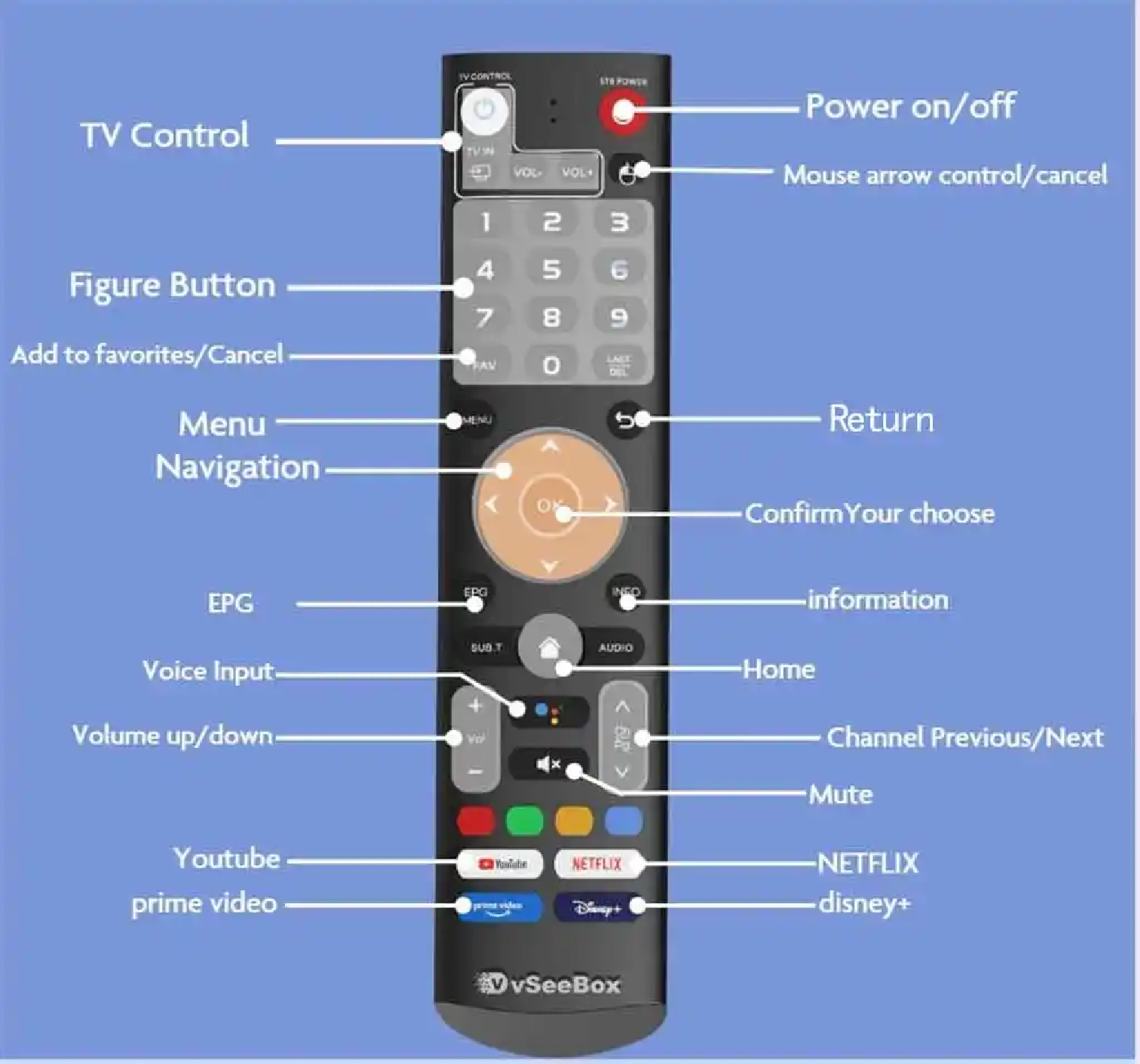
Top Function Area: Core Control Center
-
Power Button: Short press to turn TV on/off; long press (3 seconds) to power off TV and external devices.
-
TV Signal Switching: Switch between HDMI, cable, AV, etc. Long press (2 seconds) to auto-scan for signals.
-
Volume Adjustment: Adjust TV volume with dedicated VOL+/- keys.
-
Mouse Mode: Toggle between traditional navigation and mouse-style cursor control.
Use Case: Perfect for typing in browsers or playing touch-based games like Angry Birds.
Numeric Key Area: Shortcut Input & Favorites
-
Number Keys 0–9: Direct channel input or quick character entry.
-
LAST Key: Return to the last watched channel or app.
-
FAV Key: Short press to open favorites; long press (2 seconds) to add current channel/app.
Tip: Bind frequently watched channels to numbers 1–5 for instant access.
Center Navigation Area: Menu Operation Core
-
Directional Pad: Navigate menus and lists.
-
OK Button: Confirm selections.
-
EPG (Electronic Program Guide): View 7-day program schedules; filter by genre.
-
Menu Button: Access settings like playback options, subtitles, and screen ratio.
-
Back Button: Return to previous screen.
-
Info Button: Display playback details (resolution, audio, duration, etc.).
Function Key Area: High-Frequency Operations
-
Voice Input: Long press to speak commands.
-
Volume/Mute: Quick adjustment and mute toggle.
-
Channel Keys: Switch channels directly.
-
Home Button: Return to TV home screen; double-click for recent apps.
Shortcut App Area: Direct Streaming Access
-
YouTube: Goes to your recommendation feed.
-
Prime Video: Opens “Continue Watching” list.
-
Netflix: Direct access to personalized content.
-
Disney+: Defaults to Marvel Cinematic Universe.
Ideal for:
-
Binge-watchers: Quick access to unfinished shows.
-
Sports fans: Set FAV to sports channels for game day.
In-Depth Look at Three Innovative Features
One-Click Direct Access: Open Apps in 3 Seconds
-
Traditional Path: Home → Apps → Find Netflix → OK (≈12 seconds).
-
vSeeBox Path: Press Netflix button (≈2 seconds).
| Task | Traditional Remote | vSeeBox |
|---|---|---|
| Open YouTube | 9 seconds | 1.5 seconds |
| Switch HDMI Source | 7 seconds | 3 seconds |
Voice Input: Hands-Free Control
| Command Type | Example |
|---|---|
| Content Playback | “Play Oppenheimer in 4K” |
| Device Control | “Volume to 30%” / “HDMI 2” |
| Quick Actions | “Open Favorites” / “Mute 10 min” |
Tips:
-
Use in quiet environments (<50 dB).
-
Speak clearly at a moderate pace.
-
Say “Cancel” to correct mistakes.
User Feedback: 92% accuracy in English command recognition.
Mouse Mode: Precision on the Big Screen
| Task | Arrow Keys | Mouse Mode |
|---|---|---|
| Click a hyperlink | 15 clicks | 3 clicks |
| Select level in Fruit Ninja | 45 seconds | 12 seconds |
Compatibility:
-
Fully supports most Android TV apps.
-
Partial support for some brand app stores (enable “Accessibility”).
-
Not supported: Apple TV+ apps.
Advanced Tips: From Beginner to Expert
Favorites Management: Create Your Personal Channel Library
-
Press FAV → “New Category” → Name (e.g., “Kids’ Shows”) → Add channels.
-
Sorting: Auto-sort by recent use, or manually drag to reorder.
-
Maintenance: Clean up unused entries monthly.
Hidden EPG Features
-
Link Netflix/Disney+ accounts to get new content alerts.
-
Tag favorite genres for personalized recommendations.
Voice Command Library
| Scenario | Example Command | Response |
|---|---|---|
| Playback Control | “Fast forward 5 minutes” | Skips ahead 5 minutes |
| “Pause” | Pauses video | |
| “Play next episode” | Starts next episode | |
| “Rewind 10 seconds” | Goes back 10 seconds | |
| Volume Control | “Increase volume” | Raises volume by 10% |
| “Mute the sound” | Mutes audio | |
| “Set volume to 50%” | Sets volume to 50% |
What Users Are Saying
“My parents can now change channels on their own—no more phone calls for help. The vSeeBox is a game-changer!”
— Jessica, California
“Mouse mode is a lifesaver for gaming—so much smoother than a joystick.”
— Tom, Gamer
“I used to waste time finding apps. Now, one click and I’m in Netflix. Brilliant!”
— Mike, New York
“The large, clear buttons are perfect for my grandma. She doesn’t need help anymore.”
— Lily, Florida
“Voice control is incredibly accurate. It’s so convenient—I absolutely love it.”
— Bob, Texas
Frequently Asked Questions
1. Which TV models are compatible?
vSeeBox supports most major brands (Samsung, Sony, LG, Hisense, TCL, etc.). Your TV needs an HDMI port.
2. What if voice commands don’t work?
-
Check if the microphone is blocked.
-
Hold the voice button for 3 seconds to re-pair.
-
Update your TV to the latest system version.
3. How do I fix a shortcut button?
Go to Settings → Remote Control Management → Re-bind apps.
4. How long does the battery last?
Typically 6–12 months. Replace batteries by opening the compartment and inserting new ones with correct polarity.
5. What if the remote malfunctions?
We offer a 14-day return policy. For warranty issues, contact customer service for repair or replacement.
Upgrade Your TV Experience Today
Don’t wait—click the link below to purchase your vSeeBox remote and transform how you interact with your smart TV.
Special Offer:
-
Free mini keyboard included for easy typing.
-
14-day hassle-free returns.
Bring home the vSeeBox and enjoy a simpler, smarter TV experience.