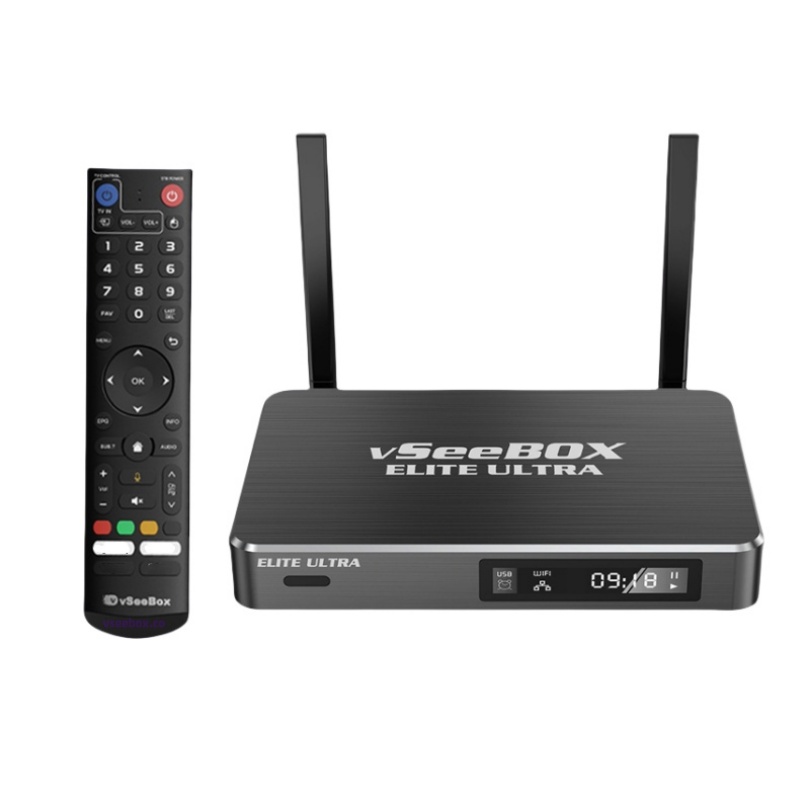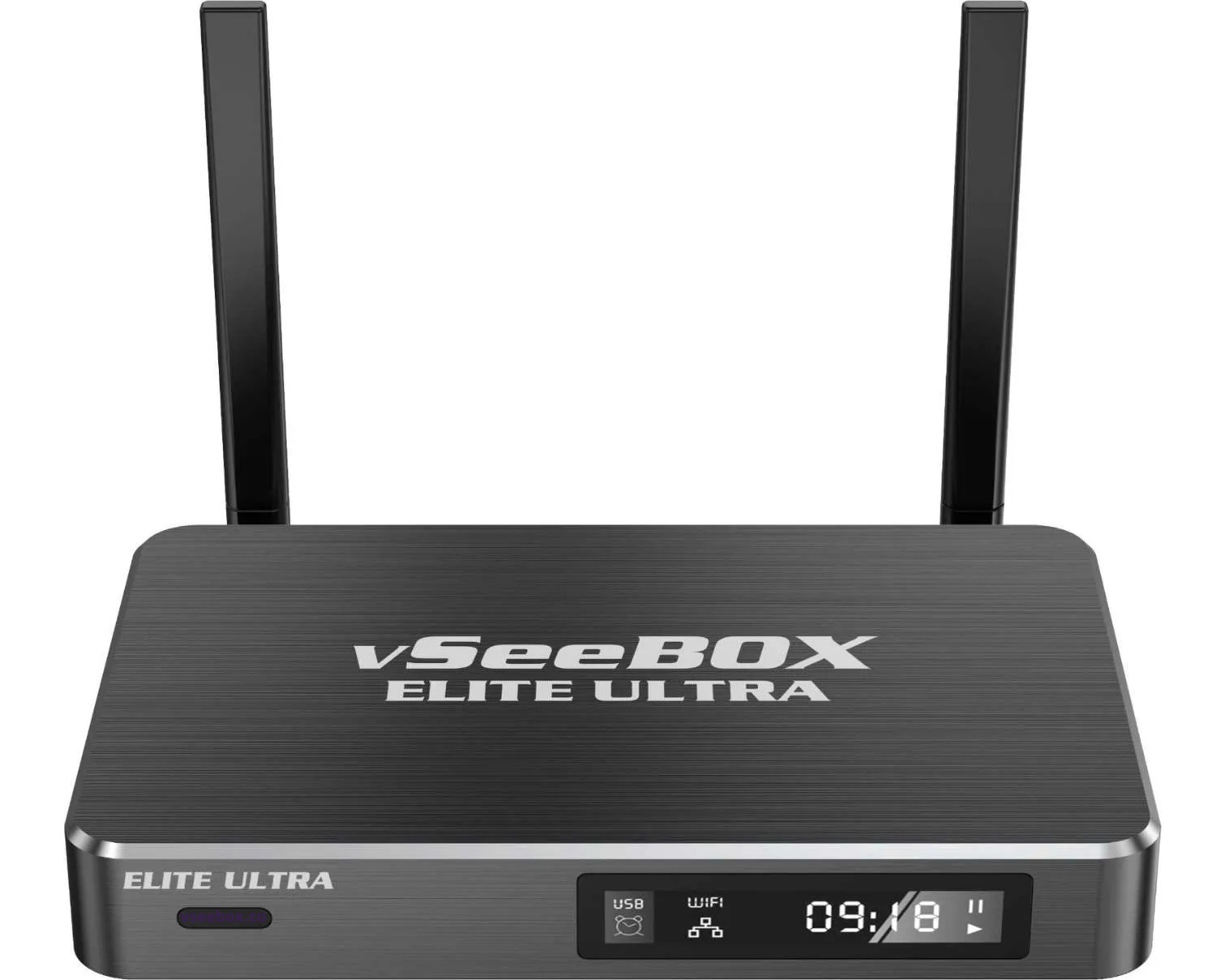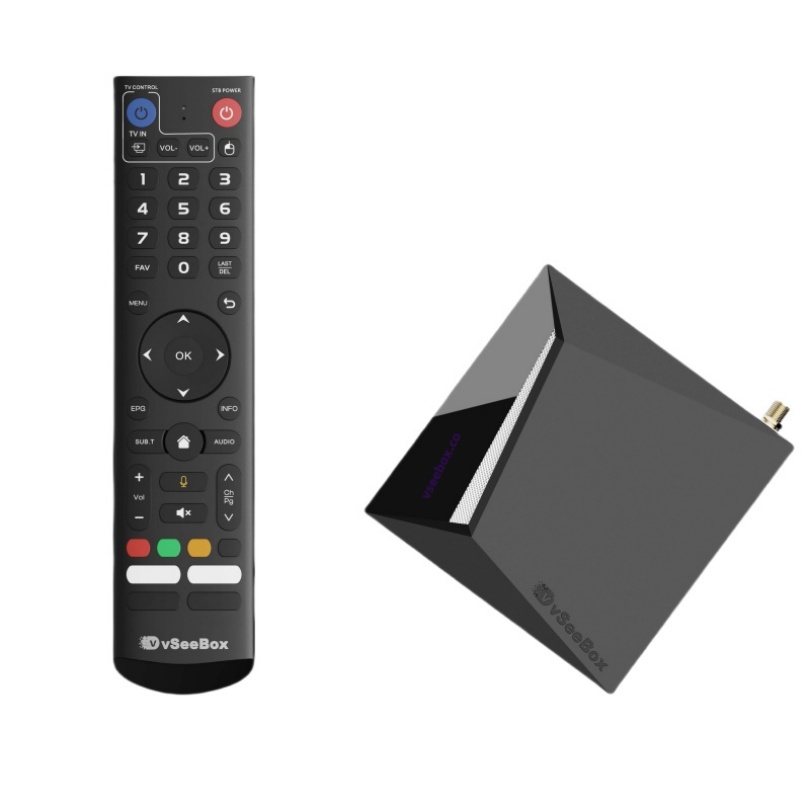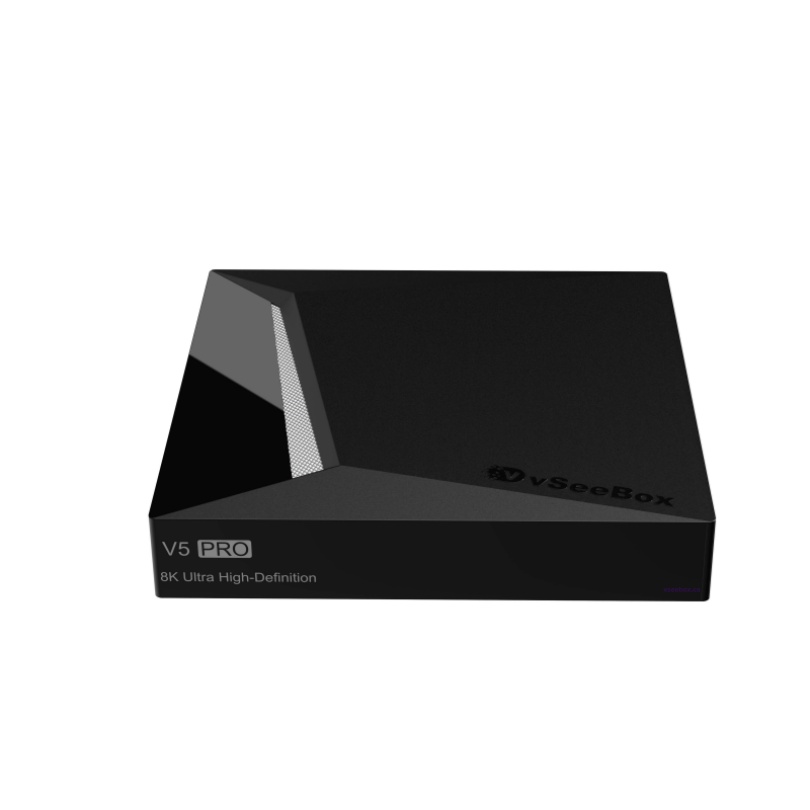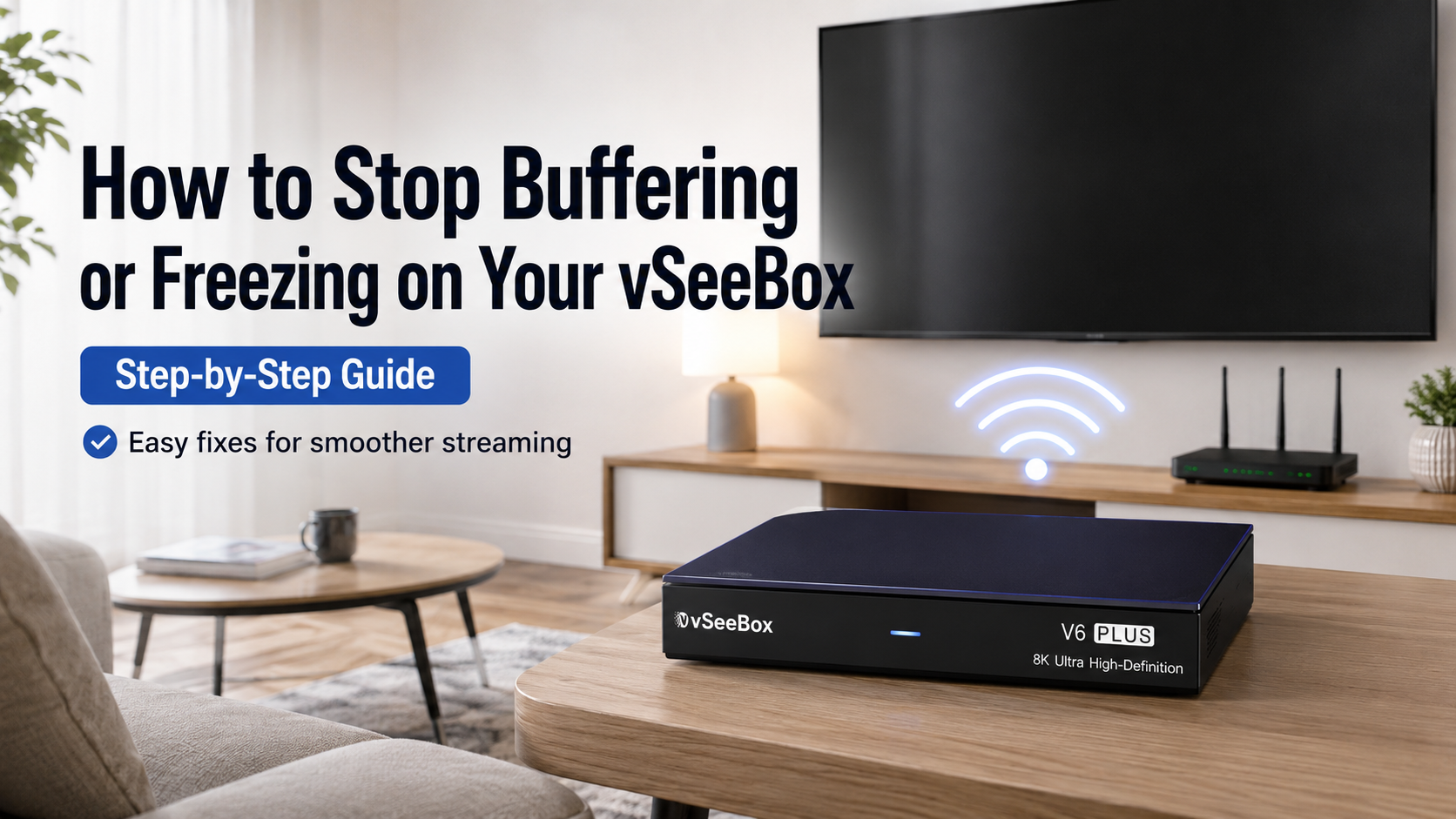
If your vSeeBox is buffering, freezing, or playing videos slowly, don't worry. In most cases, the issue can be fixed in just a few minutes.
This guide walks you through the most common causes and the easiest solutions—no technical experience required.
Whether you're watching a movie, enjoying family entertainment, or using your favorite streaming apps, these simple steps can help improve your viewing experience.
Table of Contents
- Why Does vSeeBox Buffer?
- Quick Fixes (Try These First)
- Check Your Internet Connection
- Improve Wi-Fi Performance
- VPN Troubleshooting
- Video Playback Tips
- When to Contact Your Internet Provider
- Frequently Asked Questions
Why Does My vSeeBox Keep Buffering?
Buffering usually happens because the device isn't receiving data fast enough.
Common causes include:
- Slow internet speed
- Weak Wi-Fi signal
- Network congestion
- VPN connection issues
- Router problems
- High video quality requiring more bandwidth
- Temporary server or network interruptions
The good news is that most buffering problems are easy to solve.
Quick Fixes (Recommended First)
Try these simple steps before changing any settings.
1. Restart Your vSeeBox
Restarting your device clears temporary memory and often fixes minor performance issues.
Simply:
- Turn off the device.
- Wait about 30 seconds.
- Turn it back on.
2. Clear Cached Data
Over time, temporary files can slow down your device.
Clearing the cache helps improve overall performance.
After clearing the cache, restart the device.
Check Your Internet Connection
Most buffering issues are caused by the home network—not the TV box itself.
3. Restart Your Modem and Router
This is one of the most effective fixes.
- Unplug both your modem and router.
- Wait at least 30 seconds.
- Plug the modem back in first.
- Wait until it's fully connected.
- Plug the router back in.
Allow a few minutes for everything to reconnect.
4. Use an Ethernet Cable Whenever Possible
A wired Ethernet connection is usually:
- Faster
- More stable
- Less affected by interference
If your router is nearby, this is the best option for smooth playback.
5. Improve Your Wi-Fi Signal
If you're using Wi-Fi:
- Move the router closer to the TV.
- Avoid placing it behind furniture.
- Keep it away from microwaves or cordless phones.
- Reduce the number of devices using Wi-Fi at the same time.
A less crowded network often improves streaming performance immediately.
6. Test Your Internet Speed
Use Fast.com or another trusted speed test.
Recommended download speeds:
| Video Quality | Recommended Speed |
|---|---|
| HD (1080p) | 10–15 Mbps |
| 4K UHD | 25 Mbps or higher |
| Multiple devices | 100 Mbps or higher |
If your speed is much lower, buffering is expected.
VPN Troubleshooting
If you're connected to a VPN:
- Try turning the VPN off temporarily.
- Test your internet speed again.
- Switch to another VPN server if available.
- Choose the server closest to your location.
Some VPN servers become overloaded and reduce streaming performance.
Improve Playback Performance
If buffering happens during playback:
Pause for 10–15 Seconds
Let the video preload before continuing.
This often eliminates frequent interruptions.
Lower the Video Quality
If your internet connection is limited, selecting a lower playback resolution may provide a smoother viewing experience.
Higher-quality video requires more bandwidth.
Check Your Home Network
If several family members are:
- Watching videos
- Playing online games
- Downloading large files
your internet connection may become congested.
Try streaming again after network activity decreases.
Consider Upgrading Your Router
Older Wi-Fi routers can become a bottleneck.
A newer Wi-Fi 6 router may provide:
- Faster wireless speeds
- Better coverage
- More stable connections
- Improved performance with multiple devices
If your router is more than five years old, upgrading may noticeably improve your experience.
Contact Your Internet Service Provider
If buffering continues after trying all of the above:
Contact your Internet Service Provider (ISP) and ask:
- Is there an outage in my area?
- Am I receiving the speed included in my plan?
- Would a faster plan better support multiple streaming devices?
Many households today benefit from internet plans of 100 Mbps or higher, especially when several people are online at once.
Frequently Asked Questions
Why does my vSeeBox keep buffering even with fast internet?
Even with fast internet, buffering can occur because of Wi-Fi interference, router performance, VPN connections, or temporary network congestion. Restarting your router and using a wired Ethernet connection often helps.
Does Ethernet work better than Wi-Fi?
Yes. An Ethernet connection is generally more stable and less affected by interference, making it the preferred option for smooth streaming.
What internet speed is recommended?
For the best experience:
- HD streaming: at least 10–15 Mbps
- 4K streaming: at least 25 Mbps
- Multiple users: 100 Mbps or higher
Should I use a VPN?
A VPN may improve or reduce performance depending on the server you connect to. If buffering starts while using a VPN, try disconnecting or switching to another server.
Will restarting my vSeeBox help?
Yes. Restarting the device clears temporary memory and resolves many minor performance issues.
When should I replace my router?
If your router is more than five years old or doesn't support modern Wi-Fi standards such as Wi-Fi 6, upgrading may improve wireless coverage and overall streaming performance.
Final Tips
Most buffering problems are related to the home network rather than the device itself. By restarting your equipment, optimizing your Wi-Fi, checking your internet speed, and using a wired connection whenever possible, you can resolve the majority of playback interruptions in just a few minutes.
If you've completed every step in this guide and still experience ongoing buffering, our customer support team is always happy to help diagnose the issue and recommend the best solution.